
If your smartwatch battery is draining fast, the most common culprits are the always-on display, GPS and continuous health sensors, too many notifications, and a weak Bluetooth or cellular connection — not a faulty watch. In most cases, you can fix smartwatch battery drain in under 10 minutes by turning off the always-on display, shortening screen timeout, limiting GPS and background apps, and updating your software. Work through the 9 fixes below in order, starting with the biggest drains first.
What Counts as Normal Smartwatch Battery Life?
Battery life varies a lot by model, so “draining fast” means different things on different watches. An Apple Watch that lasts 18 hours is normal; a Garmin that dies in 18 hours is not. Use this table as a reality check before you change anything.
| Watch | Typical battery life | A sign something is wrong |
|---|---|---|
| Apple Watch Series 9 / 10, SE 2 | About 18 hours, up to 36 hours in Low Power Mode | Dies before bedtime with light use |
| Samsung Galaxy Watch 6 / 7 / Ultra | 1–2 days (Ultra: 2–3 days) | Needs charging twice a day |
| Garmin Forerunner / Venu / Fenix | 5–14 days depending on model | Loses more than 20% overnight with no activity |
| Google Pixel Watch 2 / 3 | About 24 hours | Dies in under 12 hours |
| Amazfit / budget Wear OS watches | 3–10 days depending on model | Drops 30%+ in a few hours idle |
If your watch is well below its normal range, keep reading. If it is within range but you want more, the same fixes still help.
Fix 1: Turn Off the Always-On Display
The always-on display is the single biggest battery drain on most smartwatches. It keeps the screen lit all day, even when you are not looking at it.
- Apple Watch: Settings > Display & Brightness > Always On > Off.
- Samsung Galaxy Watch: Settings > Display > Always On Display > Off.
- Pixel Watch: Settings > Display > Always-on screen > Off.
- Garmin: Settings > System > Display > set to raise-to-wake only.
If you love the always-on look, try a minimal black watch face instead — it uses far less power than a bright, colourful one. Switching from always-on to raise-to-wake can nearly double battery life on an Apple Watch or Galaxy Watch.
Fix 2: Lower Brightness and Shorten Screen Timeout
A bright screen at full brightness drains power fast, especially outdoors where auto-brightness pushes it to maximum.
Turn auto-brightness off and set brightness manually to a comfortable middle level, and shorten the screen timeout to 5–10 seconds. On Apple Watch, go to Settings > Display & Brightness > Wake Duration > Wake for 15 Seconds (or less). On Galaxy Watch, Settings > Display > Screen timeout. Every second the screen stays on after you lower your wrist costs battery.
Fix 3: Limit GPS and Continuous Health Sensors
GPS is the hungriest sensor on a smartwatch. One hour of GPS-tracked running can use 10–20% of a battery, and continuous heart-rate, SpO2, and skin-temperature tracking add up all day.
- Use GPS only during workouts, not for all-day location tracking.
- On runs, use your phone’s GPS when possible if your watch supports it — the phone has a much bigger battery.
- Turn continuous SpO2 and stress tracking to manual or “during sleep only” if you do not need them all day.
- Keep heart-rate tracking on during workouts, but switch all-day heart-rate sampling from every second to every 10 minutes where your watch allows it.
A loose or too-tight fit also makes sensors work harder. If your readings jump around, check your fit — our guide on how tight a smartwatch should be explains the two-finger test that keeps sensors accurate without wasting power on retries.
Fix 4: Cut Notifications to What Actually Matters
Every notification wakes the screen, vibrates the motor, and wakes the processor. Fifty notifications a day can cost hours of battery.
On your phone’s watch app, turn off notifications for social media, games, shopping apps, and group chats. Keep only calls, messages from key contacts, calendar alerts, and one or two essential apps. On Apple Watch, use the Watch app > Notifications and toggle apps off one by one. On Galaxy Watch, use the Galaxy Wearable app > Watch settings > Notifications > App notifications.
Fix 5: Close Rogue Background Apps and Watch Faces
A single buggy third-party app or an animated watch face can drain a watch overnight. Animated, live-data, or weather-heavy watch faces are common culprits.
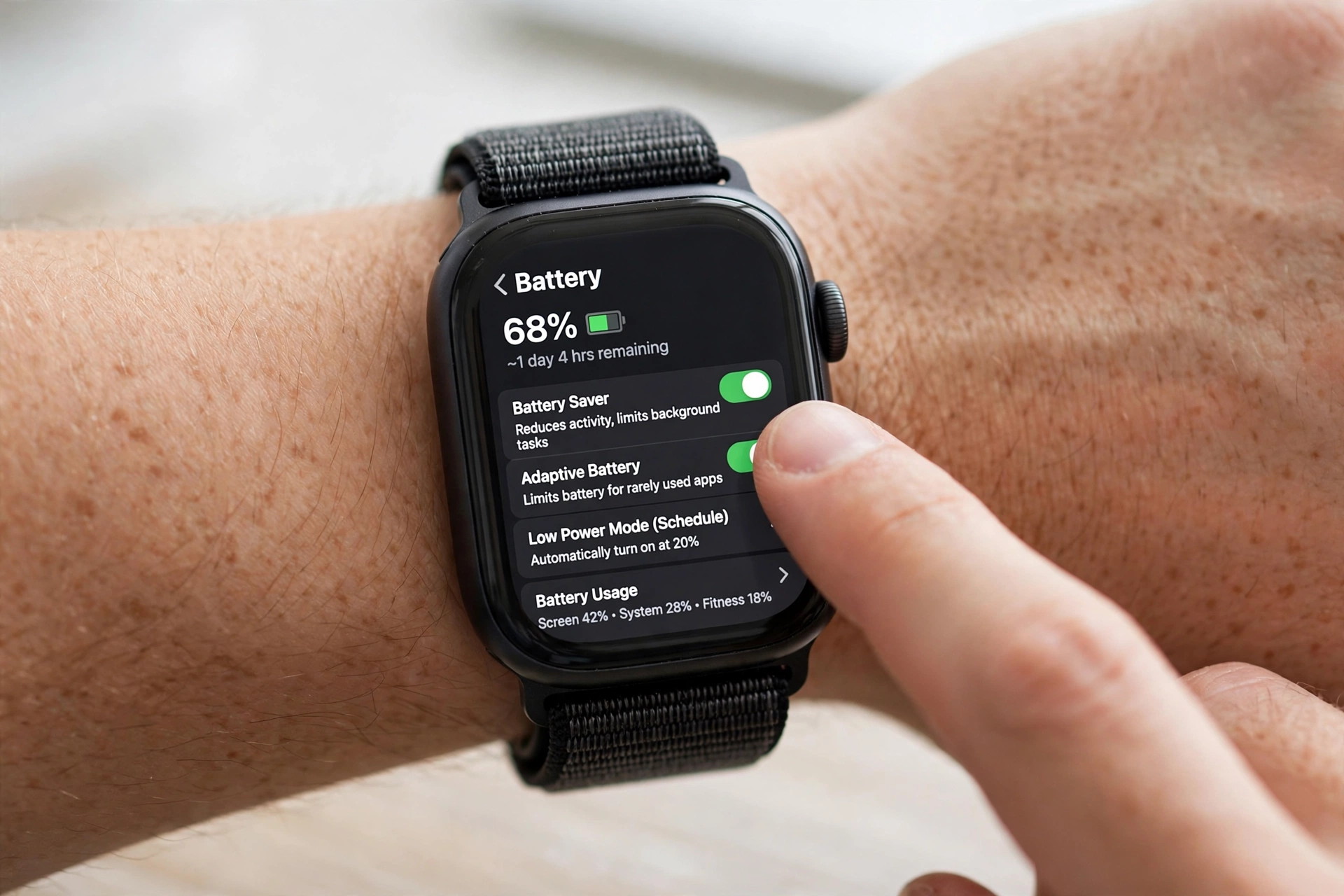
Switch to a simple stock watch face for a day and see if battery life improves. If it does, the old face was the problem. Also check battery usage: on Apple Watch, Settings > Battery shows usage by app; on Wear OS, Settings > Battery shows which apps used the most power. Remove or update any app using far more than its share, and restart the watch after removing it.
Fix 6: Fix a Weak Bluetooth, Wi-Fi, or Cellular Connection
When your watch struggles to stay connected, it boosts its radio power to compensate — and that drains the battery fast. This is worst on LTE watches in weak-signal areas.
- Keep your phone nearby. A stable Bluetooth link uses far less power than a watch hunting for a signal.
- On LTE watches, turn off cellular when you are near your phone: Apple Watch Control Centre > Cellular off; Galaxy Watch Settings > Connections > Mobile networks > Auto or Off.
- Turn off Wi-Fi on the watch if you do not need standalone Wi-Fi.
- If the watch keeps disconnecting, unpair and re-pair it — a stale pairing can cause constant reconnect attempts.
Fix 7: Update Software and Restart Weekly
Manufacturers regularly ship battery optimisations, and a buggy update can also cause drain until it is patched. Check for updates on both the watch and its phone app, and install them.
Then restart your watch at least once a week. A restart clears memory leaks and stops runaway background processes — it is the simplest fix for a watch that suddenly started draining after weeks of normal use. If drain started right after an update, give it 2–3 days: the watch often re-indexes and recalibrates after a major update, then settles.
Fix 8: Use the Right Charger and Charging Habits
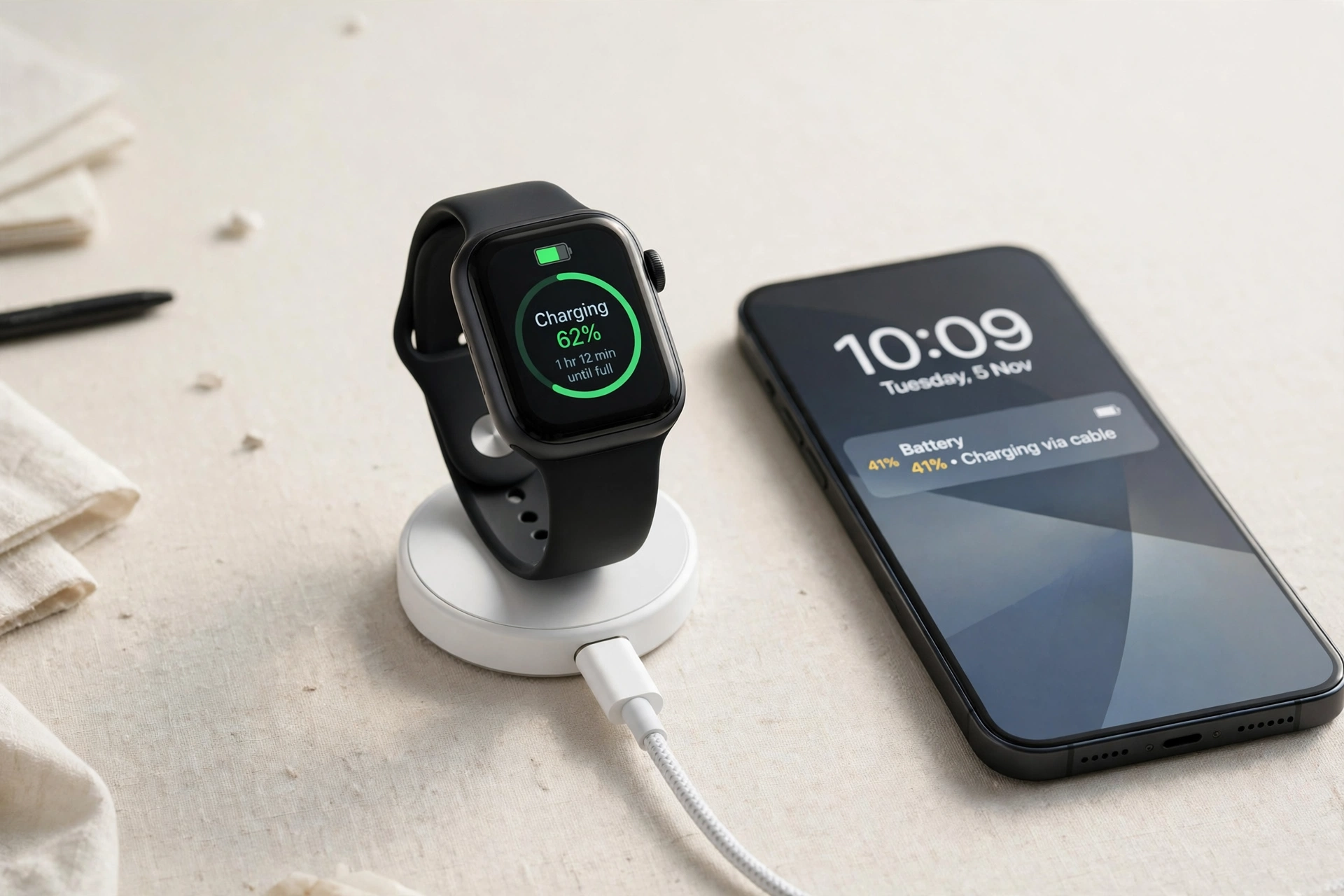
A damaged cable, a low-power USB port, or a third-party charger that does not seat properly can leave your watch only partly charged — so it looks like fast drain when it never actually reached 100%.
Use the original or manufacturer-approved charger, plug it into a proper wall adapter (not a laptop USB port), and make sure the watch sits flat on the charger. Clean the charging contacts gently with a dry cloth. Avoid letting the battery sit at 0% for days, and avoid extreme heat while charging — heat is the fastest way to permanently age a lithium battery.
Fix 9: Check Battery Health — and Know When It Is Hardware
Rechargeable batteries degrade. After 2–3 years, a watch may hold only 80% of its original capacity, and no setting will restore it.
- Apple Watch: Settings > Battery > Battery Health. Below 80% means Apple considers it degraded.
- Samsung Galaxy Watch: Galaxy Wearable app > Watch settings > Battery, or a diagnostic via Samsung Members.
- Garmin: No built-in health percentage — judge by whether a full charge still delivers close to the rated days.
If health is poor, or the watch swells, gets hot, or dies from 30% to 0% in minutes, stop using it and contact the manufacturer about a battery replacement. Do not try to open a sealed watch yourself.
Quick Checklist: Stop Smartwatch Battery Drain Today
- Turn off the always-on display.
- Lower brightness and shorten screen timeout.
- Use GPS only during workouts.
- Limit notifications to essential apps only.
- Switch to a simple watch face and remove rogue apps.
- Keep Bluetooth stable; turn off LTE when near your phone.
- Update software and restart the watch.
- Charge with the original charger.
- Check battery health if the watch is over 2 years old.
Work through this list in order and check battery life after each change — most people find the culprit in the first three steps.
Frequently Asked Questions
Why is my smartwatch battery draining so fast all of a sudden?
A sudden drain is usually software, not hardware: a new update, a new watch face, a new app running in the background, or a broken Bluetooth pairing. Restart the watch, switch to a stock watch face, update software, and re-pair if needed. If it started after an update, wait 2–3 days for recalibration before concluding the battery is faulty.
Does always-on display drain a smartwatch battery a lot?
Yes. Always-on display is often the biggest single drain, keeping the screen lit all day. Turning it off or switching to a minimal black face can add hours — sometimes nearly doubling daily battery life on Apple Watch and Galaxy Watch models.
Does GPS drain smartwatch battery?
Yes, GPS is the hungriest sensor. An hour of GPS tracking can use 10–20% of battery, and continuous GPS plus heart-rate tracking during long workouts drains even faster. Use GPS only during activities, and use phone GPS when your watch supports it.
Why does my smartwatch battery die overnight?
Overnight drain is usually caused by sleep tracking with continuous SpO2, an animated watch face, notifications waking the screen, or a weak Bluetooth link making the watch hunt for your phone. Turn on Do Not Disturb / Bedtime Mode, use a simple face, and keep the phone nearby and charged.
Should I turn off heart rate monitoring to save battery?
You do not need to turn it off completely. Switch all-day heart-rate sampling to a longer interval and keep continuous tracking for workouts and sleep only. Turning off continuous SpO2 and stress tracking saves more battery with less loss of useful data.
When should I replace my smartwatch battery?
Replace it when battery health drops below 80% (Apple Watch shows this directly), when a full charge no longer lasts close to the rated life after all software fixes, or when the watch dies suddenly from a high percentage. For watches over 3 years old, compare replacement cost against a new watch before deciding.
The Bottom Line
Most smartwatch battery drain is fixable without spending anything. Start with the display, then GPS and sensors, then notifications and connections — and only suspect the battery itself after you have worked through all 9 fixes. A watch that still drains after that is telling you it needs a battery replacement, not another setting tweak.
New to smartwatches? Start with what a smartwatch actually does to understand which features are worth their battery cost, and check how tight your watch should be so its sensors work accurately without wasting power.
Disclaimer: This guide covers general smartwatch settings and battery care. Health features such as heart-rate and blood-oxygen readings are for general wellness information only and are not a substitute for medical advice. If you have a health concern, consult a qualified healthcare professional.