
What Is Mobile Device Management? The Short Answer
Mobile device management, or MDM, is software that lets a business set up, secure, and control its phones, tablets, and laptops from one screen — without touching each device by hand. You decide the rules once — a passcode is required, work email is installed automatically, a lost phone can be locked or wiped — and MDM applies them to every enrolled device, whether it is sitting on the next desk or in an employee’s pocket three time zones away.
If that sounds like something only big companies with an IT department need, it used to be. It is not anymore. The moment your team checks work email on a phone, carries a company laptop home, or uses a tablet at a client site, you have devices holding business data outside your office — and no way to protect that data if one of them is lost, stolen, or handed to someone who just left the company. MDM is the tool that closes that gap. It does not require an IT team to run: most modern MDM tools are cloud software you manage from a web browser, and a small business can be up and running in a week.
This guide explains MDM in plain English: what it actually does day to day, what it cannot do, when a small business needs it (and when it does not), what it costs, and how the big names — Apple Business, Microsoft Intune, Jamf, Mosyle, Hexnode, and Scalefusion — fit together.
What MDM Actually Does Day to Day
Strip away the jargon and MDM does five practical jobs for a small business.
1. It sets the rules on every device. You define a policy once — screen lock required, encryption on, a minimum operating system version, no unknown app installs — and MDM pushes it to every enrolled phone, tablet, and laptop. When a device breaks a rule, you see it on the dashboard and can act on it, instead of finding out months later.
2. It sets up new devices for you. A new starter’s phone or laptop can arrive ready to work: Wi-Fi, email, and the apps they need are installed automatically the first time the device is switched on. Nobody in your business has to sit with each new hire for an hour doing manual setup.
3. It keeps software up to date. MDM can push operating system updates and app updates to the whole fleet, and block devices that are badly out of date from reaching company email and files until they update. Outdated software is one of the most common ways a small business gets breached, and it is also one of the easiest to fix this way.
4. It protects company data when things go wrong. A phone is lost, an employee leaves, a laptop is stolen — MDM lets you lock the device, find its location, or erase the company data on it from your desk. You do not need the device in your hands.
5. It separates work from personal life. On a personal phone used for work, MDM creates a separate, protected work area — company email and apps live in their own container, and your business can remove that container without touching the employee’s photos, messages, or personal apps. This matters more than most owners realise: it is what makes using personal phones for work legally and practically workable.
What MDM Does — and What It Does Not Do
| MDM does | MDM does not do |
|---|---|
| Enforce a screen lock, encryption, and security rules on enrolled devices | Read an employee’s messages, emails, or photos |
| Install apps, Wi-Fi, VPN, and email settings automatically | Record keystrokes, calls, or browsing history |
| Push OS and app updates to the whole fleet | Track a device’s location all the time (location is normally only shown when a device is reported lost) |
| Lock or wipe a lost or stolen device remotely | Fix a phone that is switched off, out of coverage, or was factory reset before it was enrolled properly |
| Remove only the company data from a personal phone when someone leaves | Replace a backup — a wiped device’s personal data is gone unless it was backed up elsewhere |
| Block devices that break the rules from company email and files | Make a weak password policy good on its own — you still need sensible rules |
The privacy row matters. Employees worry, reasonably, that MDM means their boss is watching their phone. A well-run MDM setup does not do that, and you should tell your team so in plain language when you roll it out: MDM manages the device’s settings and the company’s data, not the person using it.
How Does MDM Actually Work?
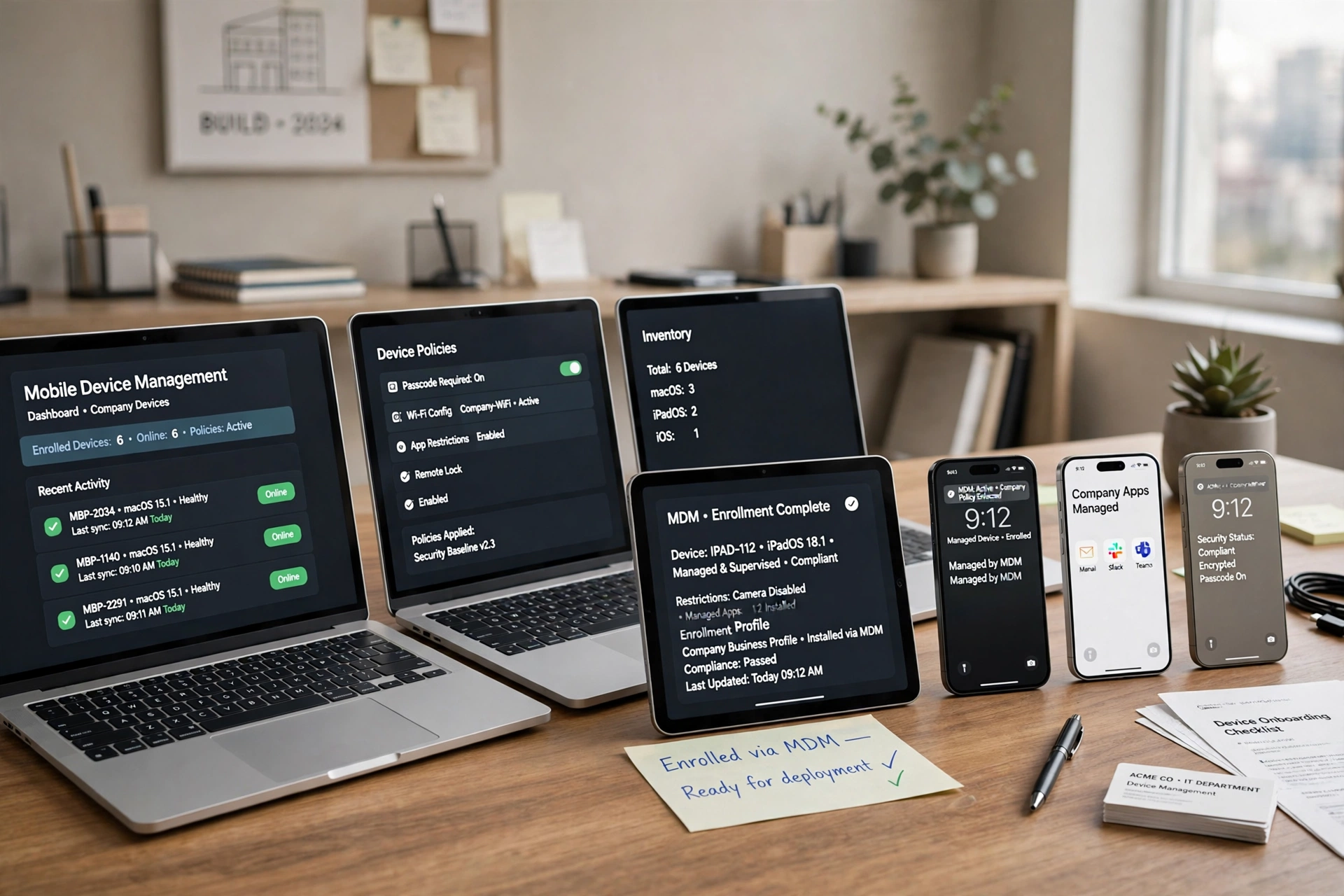
MDM works through a simple loop: a device is enrolled, it receives a policy, and it checks in with your MDM console regularly to confirm it is still following the rules.
Enrolment is the step that connects a device to your MDM account. How it happens depends on who owns the device:
- Company-owned Apple devices are enrolled through Apple Business (formerly Apple Business Manager — Apple renamed it in April 2026). You buy or register the device with Apple Business, and the moment it is switched on for the first time it is automatically handed to your MDM tool. This is called zero-touch enrolment, and it means nobody has to touch the device before the employee does.
- Company-owned Android devices are enrolled through Android Enterprise, usually by scanning a QR code on the welcome screen during first setup. The phone then configures itself: it joins your organisation, applies your policy, and installs the required apps.
- Company-owned Windows laptops are enrolled through Microsoft Intune, often automatically when the user signs in with their work account.
- A device already in daily use is harder: turning a phone someone already uses into a fully managed company device usually means wiping it first and starting again. Plan enrolment for new devices and new starters, and handle existing devices as a separate, deliberate project.
Once enrolled, the MDM tool sends the device a configuration — the rules you set in the console — and the operating system itself enforces them. That is an important detail: the rules are applied by iOS, Android, macOS, or Windows, not by an app the employee could delete. The device then checks in with the console on a schedule, reporting its status: compliant, out of date, or in breach of a rule.
From your side, all of this is one web page: the MDM console (or dashboard). It lists every device, who it belongs to, whether it is compliant, and what needs attention. For a team of ten or twenty devices, checking it takes a few minutes a week.
Company-Owned Devices vs BYOD: Different Rules for Different Phones
Not every device in your business is the same, and MDM treats them differently. Getting this distinction right is half the job.
Company-owned devices are phones, tablets, and laptops the business bought and owns. These can be fully managed: you control the apps, the settings, the updates, and you can wipe the whole device if it is lost or the employee leaves. This is the right approach for phones you hand out, shared tablets, and any device that holds sensitive client data.
BYOD — bring your own device — is when employees use their own phones for work. Here the rules change completely, both technically and legally. You cannot and should not manage someone’s personal phone the way you manage a company phone. Instead, MDM protects only the company apps and data: work email, Teams, and files live inside a protected work container, and when the employee leaves you remove that container and nothing else. Their photos, messages, and personal apps are untouched.
Most small businesses end up with both: fully managed laptops and company phones for some roles, and protected work apps on personal phones for everyone else. Decide which devices fall in which group before you buy anything — write it down in one paragraph: who gets a company device, what is allowed on personal phones, and what happens when someone leaves. That paragraph becomes your device policy, and every MDM tool will ask you for it in one form or another.
When Does a Small Business Need MDM?
You do not need MDM because a blog post said so. You need it when specific things start happening in your business:
- Your team reads work email on their phones. A lost phone with open email is one of the most common small-business data leaks. If even five people check email on personal phones, you have five copies of your inbox walking around unprotected.
- Someone has left and you could not take the data back. If a former employee still has company files on a phone or laptop a month after leaving, that is the problem MDM exists to solve.
- You handle client or customer data. If your business holds customer details, health information, financial records, or anything covered by a contract or regulation, your clients increasingly expect you to protect it on every device — and some will ask you to prove it.
- Devices are shared or move around. Tablets at a reception desk, phones for delivery drivers, laptops that travel to client sites — shared and mobile devices are the ones that get lost, and the ones nobody updates.
- You have more than about ten devices and nobody knows what is on them. That is the tipping point most small businesses hit: the fleet is big enough that manual management has quietly stopped happening.
And when do you not need it yet? If you are a two-person business, neither of you accesses work systems from a phone, and the only computer is a desktop that never leaves the office, MDM is overkill. A strong password and a backup will do. But honestly, that describes very few businesses in 2026: most teams, even small ones, are checking email, approving invoices, and joining video calls from their phones every day.
What Does MDM Cost?
MDM is priced per device or per user, per month, and for a small business it is usually one of the cheapest security tools you can buy. The exact price depends on the vendor and the features you pick, but these are the starting prices from our best mobile device management solutions for businesses guide:
| Vendor | Starting price | Notes |
|---|---|---|
| Scalefusion | From $2/device/month | One of the cheapest starting points for a small fleet |
| Hexnode | From $2.20/device/month | Strong on mixed Android and Apple fleets |
| Mosyle | Free up to 30 devices, then from about $1 | The free tier covers many small businesses entirely |
| Jamf for Mobile | From $5.75 | Apple-focused; Jamf for Mac from $12.50 |
| Microsoft Intune | From $8/user/month | Often already included — see below |
Two things about that table that save small businesses real money. First, check what you already pay for: if you use Microsoft 365 Business Premium, Intune is included in the plan — you already own MDM and just need to switch it on. Second, Mosyle’s free tier covers up to 30 devices, which is more than many small businesses own in total. A ten-device business can easily pay under $30 a month for MDM, and sometimes nothing at all.
The cost that matters more than the licence is your time: someone has to write the policy, enrol the devices, and check the dashboard. Budget a few hours to set it up and a few minutes a week to run it — or hand it to your IT provider and let them run it for you. Either way, compare it with the cost of the alternative: a lost phone with a client’s data on it, or a former employee keeping your files.
Apple Business, Intune and the Rest: Which One Fits?
There is no single best MDM tool — the right one depends on the devices you already own. Here is the short version.
If you run on Apple devices, start with Apple Business. Apple Business (formerly Apple Business Manager — the name changed in April 2026) is Apple’s free portal for registering company iPhones, iPads, and Macs. It is not an MDM tool itself; it is the front door. You register your devices there, and it hands them automatically to your chosen MDM tool — Mosyle, Jamf, or Hexnode — the first time they are switched on. If your team is mostly on iPhone and Mac, Jamf is the Apple specialist, and Mosyle is the budget-friendly Apple-first option with its free tier for up to 30 devices.
If you run on Microsoft 365, start with Microsoft Intune. It is already included in Microsoft 365 Business Premium and in the larger enterprise plans, so many small businesses are already paying for it without using it. Intune manages Windows laptops, Macs, iPhones, iPads, and Android from one console, which makes it the natural choice for a mixed fleet that already lives in Microsoft’s world. Our guide to the best mobile device management solutions compares Intune with the rest in detail, including which plan includes it and what the standalone price covers.
If you have a mixed fleet and want the cheapest start, look at Scalefusion or Hexnode. Both start at around $2 per device per month, both handle Apple, Android, and Windows, and both are built for businesses without an IT department.
If you have no IT person at all, pick the tool that matches the ecosystem you already use — Apple Business with Mosyle if you are an Apple shop, Intune if you are a Microsoft 365 shop — and let your IT provider or the vendor’s onboarding team do the setup. The wrong choice is not a cheap tool; the wrong choice is a tool nobody configures.
What Happens When a Phone Is Lost or Stolen?
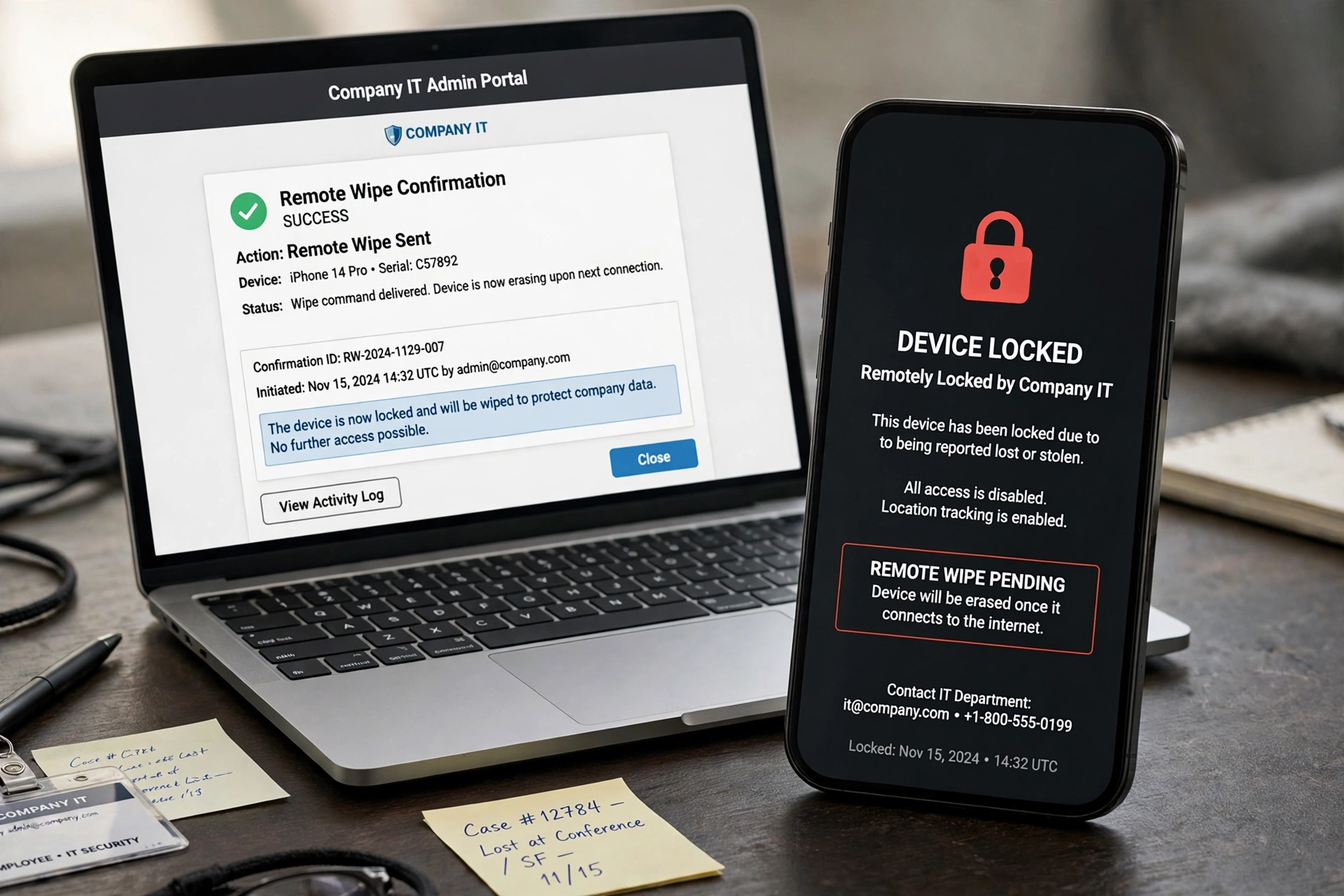
This is the scenario MDM exists for, so it is worth walking through it step by step.
- You report it lost in the console. From your MDM dashboard, you mark the device as lost. If it is online, you can see its last known location. If it is offline, the commands wait: the moment it connects to the internet again, they run.
- You lock it. The device locks immediately and shows a message on the screen — usually your business name and a phone number to call. Nobody can use it, and the lock cannot be removed without your MDM console.
- You wipe it, if you need to. You have two choices. A full wipe erases everything on the device and returns it to factory settings — the right call for a stolen company-owned phone. A selective wipe removes only the company data — work email, apps, and files — and leaves the personal content alone. That is the right call for a personal phone used for work, and for a company phone you still hope to get back.
- You check the result. The console confirms when the wipe command was delivered and completed. Keep that record: if the lost device held client data, you may need to show what you did about it.
Two honest limits. First, MDM cannot do anything to a device that is switched off or has no connection — the commands queue up and run when it comes back online, which is usually good enough, but it is not magic. Second, MDM cannot recover a device that was factory reset by someone who knew what they were doing before it was properly enrolled. Enrol devices when they are new, not after they go missing.
How to Get Started in a Week
You do not need a project plan. A small business can go from zero to managed devices in five steps, in about a week.
- Count your devices. List every phone, tablet, and laptop that touches company email or files, and mark each one as company-owned or personal (BYOD). This list is your fleet.
- Write the one-paragraph policy. Who gets a company device, what is allowed on personal phones, what happens when someone leaves, and what the screen-lock and update rules are. Keep it to a paragraph — if it needs a lawyer to read, it is too long for a first version.
- Pick the tool that matches your ecosystem. Apple shop: Apple Business plus Mosyle or Jamf. Microsoft 365 shop: Intune. Mixed fleet on a budget: Scalefusion or Hexnode. Check first whether you already pay for one.
- Enrol the devices. Start with new devices and new starters — they enrol cleanly. Then work through the existing fleet, a few devices at a time, and expect some of them to need a wipe first. Tell each employee what MDM does and does not do (see the table above) before you enrol their phone.
- Check the dashboard weekly. Five minutes, once a week: any device out of date, any rule broken, any device that has not checked in for a while. That is the whole ongoing job for a small fleet.
FAQs: What Is Mobile Device Management?
What is mobile device management in simple terms?
Mobile device management is software that lets a business control its work phones, tablets, and laptops from one screen. It sets security rules, installs apps and email automatically, keeps software updated, and lets you lock or wipe a device if it is lost or stolen — without touching each device by hand.
Does a small business really need MDM?
It depends on how your team works. If staff read work email on phones, carry laptops home, or use tablets at client sites, yes — those devices hold business data outside your office, and MDM is the simplest way to protect it. If nobody accesses work systems from a mobile device at all, you probably do not need it yet.
What is the difference between MDM and MAM?
MDM manages the whole device — its settings, apps, and security rules. MAM (mobile application management) protects only the work apps and their data, without managing the device itself. MDM is for company-owned devices; MAM is often enough for personal phones used for work, where you want to protect company email without controlling the whole phone. Microsoft Intune does both.
Can MDM see what employees do on their phones?
No — not in the way people fear. MDM can see the device’s settings, whether it follows the rules, and which company apps are installed. It cannot read messages, emails, or photos, record calls or keystrokes, or track browsing history. Location is normally only shown when a device is reported lost. Tell your team this plainly when you roll it out.
How much does MDM cost for a small business?
Usually very little. Scalefusion starts from $2 per device per month, Hexnode from $2.20, and Mosyle is free for up to 30 devices. Microsoft Intune starts from $8 per user per month but is included in Microsoft 365 Business Premium, so many businesses already pay for it. A ten-device business can easily pay under $30 a month — sometimes nothing.
What is Apple Business, and do I need it?
Apple Business is Apple’s free portal for registering company iPhones, iPads, and Macs — it was called Apple Business Manager until Apple renamed it in April 2026. It is not an MDM tool itself; it hands your Apple devices automatically to your chosen MDM tool (such as Mosyle, Jamf, or Hexnode) the first time they are switched on. If your business uses Apple devices, you will use it alongside your MDM tool, not instead of it.
Disclaimer: This guide is general information about mobile device management for small businesses, not IT, legal, or compliance advice. Rules about employee privacy, data protection, and device monitoring vary by country and by employment contract — check your local requirements or talk to a qualified adviser before enrolling personal devices. Prices change; always check the vendor’s own pricing page before buying.