
Apple Watch sleep tracking turns your watch into an overnight sleep monitor: wear it to bed, and it records how long you slept, how much time you spent in each sleep stage, and — on watchOS 26 — a 0–100 Sleep Score that grades the night. Setup takes about five minutes in the Health app, and you do not need to press anything at bedtime: once a sleep schedule and Sleep Focus are on, tracking starts automatically.
This guide covers the full setup on iPhone and on the watch, how to read every number the Health app shows you, what a good Sleep Score actually is, the charging routine that keeps the watch alive until morning, and how to fix the four problems that make sleep data go missing.
What You Need Before You Start
- An Apple Watch Series 3 or later with watchOS 7 or later for basic sleep tracking (time asleep and time awake).
- An Apple Watch Series 4 or later with watchOS 9 or later for sleep stages (REM, Core, and Deep).
- An Apple Watch Series 6 or later, SE (2nd generation) or later, or any Ultra model with watchOS 26 and an iPhone on iOS 26 for the Sleep Score.
- At least 30% battery before bed. If the battery drops below 30% at bedtime, the watch prompts you to charge it first — a watch that dies at 3 a.m. records only a partial night, and a partial night cannot be scored.
- The watch worn on your wrist overnight, snug enough that the sensors stay in contact with your skin. A loose band is the most common cause of gaps in sleep data; our guide to how tight a smartwatch should be covers the fit check in detail.
How to Set Up Apple Watch Sleep Tracking on iPhone
Everything starts in the Health app. Apple syncs your sleep settings to the watch automatically, so you only set this up once.
- Open the Health app on your iPhone.
- Tap Browse, then tap Sleep.
- Tap Get Started (first time only) and set your sleep goal — the number of hours you want to sleep each night. Eight hours is the default; most adults need 7–9.
- Tap Sleep Schedule under Your Schedule, then tap Set Your First Schedule.
- Choose the days the schedule applies to. You can keep one schedule for every day or set different bedtimes for weekdays and weekends.
- Set your bedtime and wake-up time by dragging the dial. The Health app works out the time in bed from these two points and your sleep goal.
- Set a Wind Down period if you want one. Wind Down starts Sleep Focus early — 15 minutes to 2 hours before bedtime — so notifications quiet down before you actually go to sleep.
- Choose your alarm sound or vibration, and turn on Wake Up alarm if you want the watch to wake you.
- Tap Done. Your schedule, goal, and alarm sync to your Apple Watch.
How to Turn On Track Sleep with Apple Watch
Setting a schedule is not the same as turning tracking on. Check the toggle:
- Open the Watch app on your iPhone.
- Tap Sleep.
- Turn on Track Sleep with Apple Watch.
- Turn on Charging Reminders too. The watch will remind you to charge before bed and tell you when it has enough charge to last the night.
- Confirm Sleep Focus is on. Sleep Focus dims the watch screen, silences notifications, and simplifies the lock screen so a glowing wrist does not wake you up.
You can also do this on the watch itself: open Settings, tap Sleep, and confirm Track Sleep is enabled.
How to Set Up Sleep Tracking Directly on Apple Watch
If your iPhone is not nearby, the watch can do the whole setup:
- Open the Sleep app on your Apple Watch and tap Next.
- Tap Full Schedule and turn on Sleep Schedule.
- Tap Set Your First Schedule and pick the days it applies to.
- Set your Wake Up time with the Digital Crown, then set your Bedtime. The watch suggests a bedtime from your sleep goal; adjust it if you want.
- Turn the Alarm on and pick a sound or vibration under Sounds & Haptics.
- Review the summary and tap Done.
To change tomorrow only — say you are staying up late one night — open the Sleep app, tap Schedule, and edit the next day without touching your regular schedule.
What Apple Watch Sleep Tracking Actually Measures
When Sleep Focus is active, the watch uses its accelerometer and heart rate sensor to work out when you fall asleep, when you wake, and how your night breaks down. Here is what lands in the Health app each morning.
For background on the device itself, see What Is a Smartwatch.
| Measurement | What it means | Needs |
|---|---|---|
| Time asleep | Minutes the watch estimates you were actually asleep, not just in bed | Series 3+, watchOS 7+ |
| Time in bed | Bedtime to wake time from your schedule | Any model |
| Time awake | Minutes awake during the night, including getting up | Series 3+, watchOS 7+ |
| Sleep stages: REM, Core, Deep | Time spent in each stage, shown as a chart | Series 4+, watchOS 9+ |
| Respiratory rate | Breaths per minute during sleep | Series 3+, watchOS 8+ |
| Heart rate | Overnight resting heart rate and trends | Any model |
| Wrist temperature | Overnight temperature changes (Vitals app) | Series 8+, Ultra |
| Blood oxygen | Overnight SpO2 where available (Vitals app) | Series 6+, Ultra (region-dependent) |
| Sleep Score | A 0–100 grade for the night | Series 6+ / SE 2+ / Ultra, watchOS 26 |
The watch also keeps 14 days of sleep stage history on the wrist itself, so you can check recent nights in the Sleep app without your phone.
How to Read Your Sleep Stages
Open the Health app, tap Browse, then Sleep. Tap the chart for last night to see the stage breakdown. On the watch, open the Sleep app for a one-screen summary.
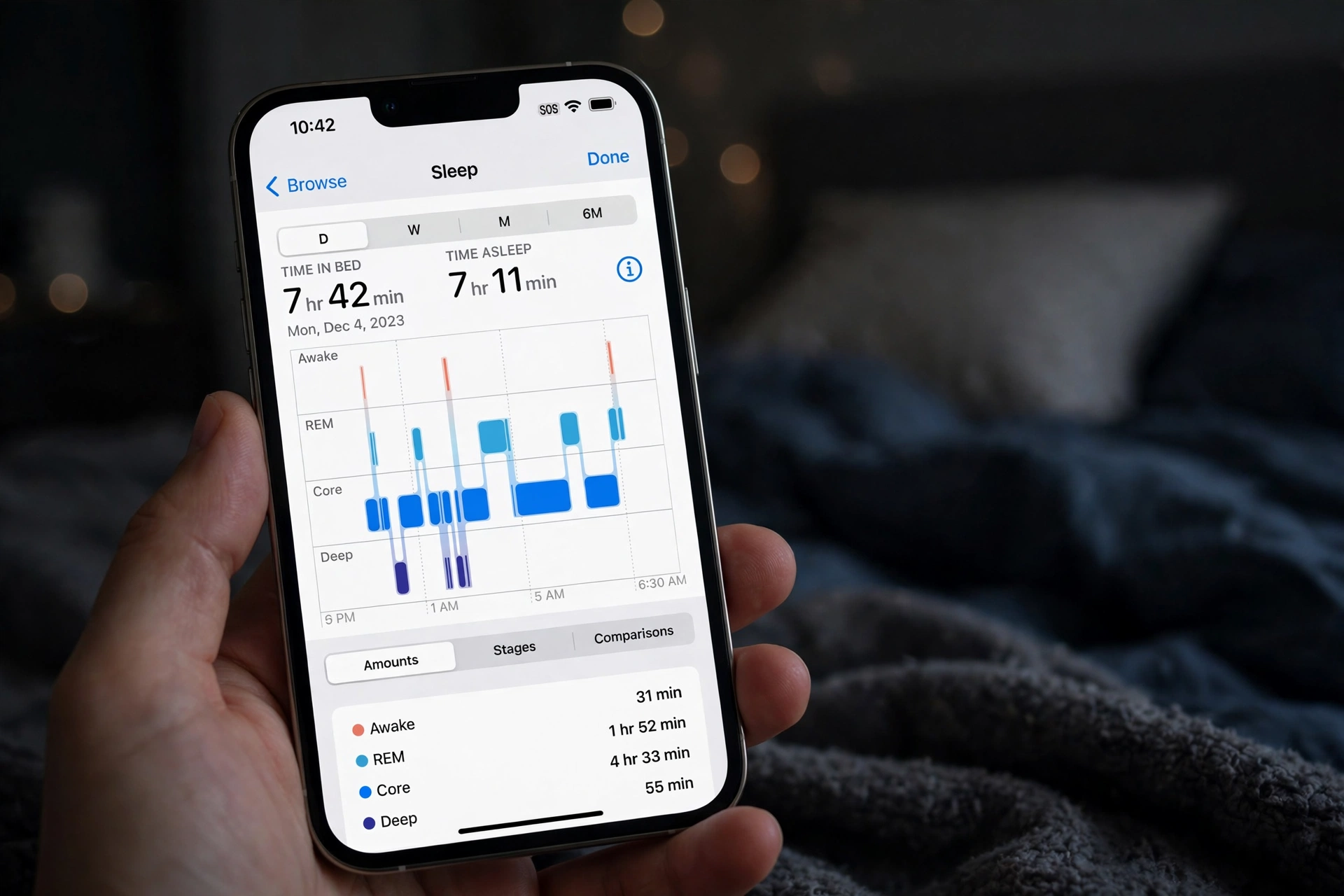
| Stage | What happens | Rough share of a typical adult night |
|---|---|---|
| Awake | Brief wake-ups, rolling over, getting up | A few short blocks is normal |
| Core | Light sleep; the bulk of the night, easy to wake from | About 50% |
| Deep | Slow-wave sleep; the body repairs muscle and consolidates memory, hardest to wake from | About 13–23% |
| REM | Dreaming; the brain is active, the body is still | About 20–25% |
Do not chase exact percentages. Apple estimates stages from movement and heart rate, not from brain waves, so the numbers are a pattern guide, not a lab result. What matters is the trend over weeks: a stable mix with deep sleep mostly in the first half of the night and REM mostly in the second half is a normal pattern. A night with almost no deep sleep after a late, heavy meal or alcohol is common and usually corrects itself the next night.
If you want the general settings that make any smartwatch track sleep better — not just the Apple Watch — our guide to the best smartwatch settings for better sleep tracking covers the settings to turn on and the ones to turn off.
The Apple Watch Sleep Score Explained (watchOS 26)
With watchOS 26, Apple added a Sleep Score: a single number from 0 to 100 that grades last night. It is unusually transparent for a wearable score, because Apple publishes exactly how it is built.
| Component | Points | What Apple measures |
|---|---|---|
| Sleep duration | Up to 50 | How long you actually slept, compared with your sleep goal |
| Bedtime consistency | Up to 30 | When you fell asleep, compared with your last 13 nights |
| Interruptions | Up to 20 | How often you woke and how long you stayed awake |
| Total | 100 | Classified from Very Low to Very High |
The score is split into five bands:
| Score | Classification | What usually produced it |
|---|---|---|
| 96–100 | Very High | A long night, a bedtime in line with your recent pattern, few awakenings |
| 81–95 | High | The realistic target for most adults on most nights |
| 61–80 | OK | Usually a short night, or a bedtime well outside your usual window |
| 41–60 | Low | Two of the three components are down, most often duration plus interruptions |
| 0–40 | Very Low | A badly fragmented or very short night, or an incomplete recording |
Three things worth knowing about the score:
- Duration is half the score. A short night drags the number down faster than a restless one. Going to bed an hour earlier is worth more points than anything else you can change.
- Consistency is judged against your own pattern, not a fixed clock time. A steady 1 a.m. sleeper is not penalised for the hour — the score rewards a narrow spread across the last 13 nights, so one late night costs less than a week of them.
- Sleep stages do not feed the score. Your watch estimates REM, Core, and Deep every night and shows them in a chart right above the score, but none of them are inputs. Heart rate, HRV, respiratory rate, and wrist temperature are recorded overnight and also do not touch the score.
One quirk to know: watchOS 26.2 revised the band labels without changing how the number is computed, so a score that read as one label before that update can read as another now without your sleep having changed. If your usual night suddenly looks worse after an update, check the number itself, not just the label. Apple has also said sleep stage timing will factor into the score on newer models, so the breakdown may shift slightly in future updates.
You can view the score in the Sleep app on your watch, in the Health app under Sleep, in the Smart Stack, or as a watch face complication.
How to View Sleep Trends Over Time
A single night tells you almost nothing. The Health app is where the patterns live:
- Open the Health app, tap Browse, then Sleep.
- The top chart shows last night. Tap it for the stage breakdown and the Sleep Score.
- Switch between daily, weekly, monthly, and six-month views to see patterns in sleep duration and schedule consistency.
- Scroll to Highlights for insights Apple surfaces automatically, such as changes in your average sleep time or how regular your schedule has been.
- Check the Vitals app overnight readings — heart rate, respiratory rate, wrist temperature, blood oxygen, and sleep duration — and look for outlier notifications. A resting heart rate or temperature that sits outside your usual range for several nights is worth noting, not panicking over.
The most useful habit is a 30-second morning check: time asleep, Sleep Score, and whether deep sleep landed in the first half of the night. Then forget about it until the weekly view shows a trend worth acting on.
The Overnight Charging Routine (So the Watch Lasts Until Morning)
The biggest practical problem with Apple Watch sleep tracking is the battery: the watch that tracks your sleep cannot charge while you wear it. The routine that works is charging in the gap between getting home and going to bed.
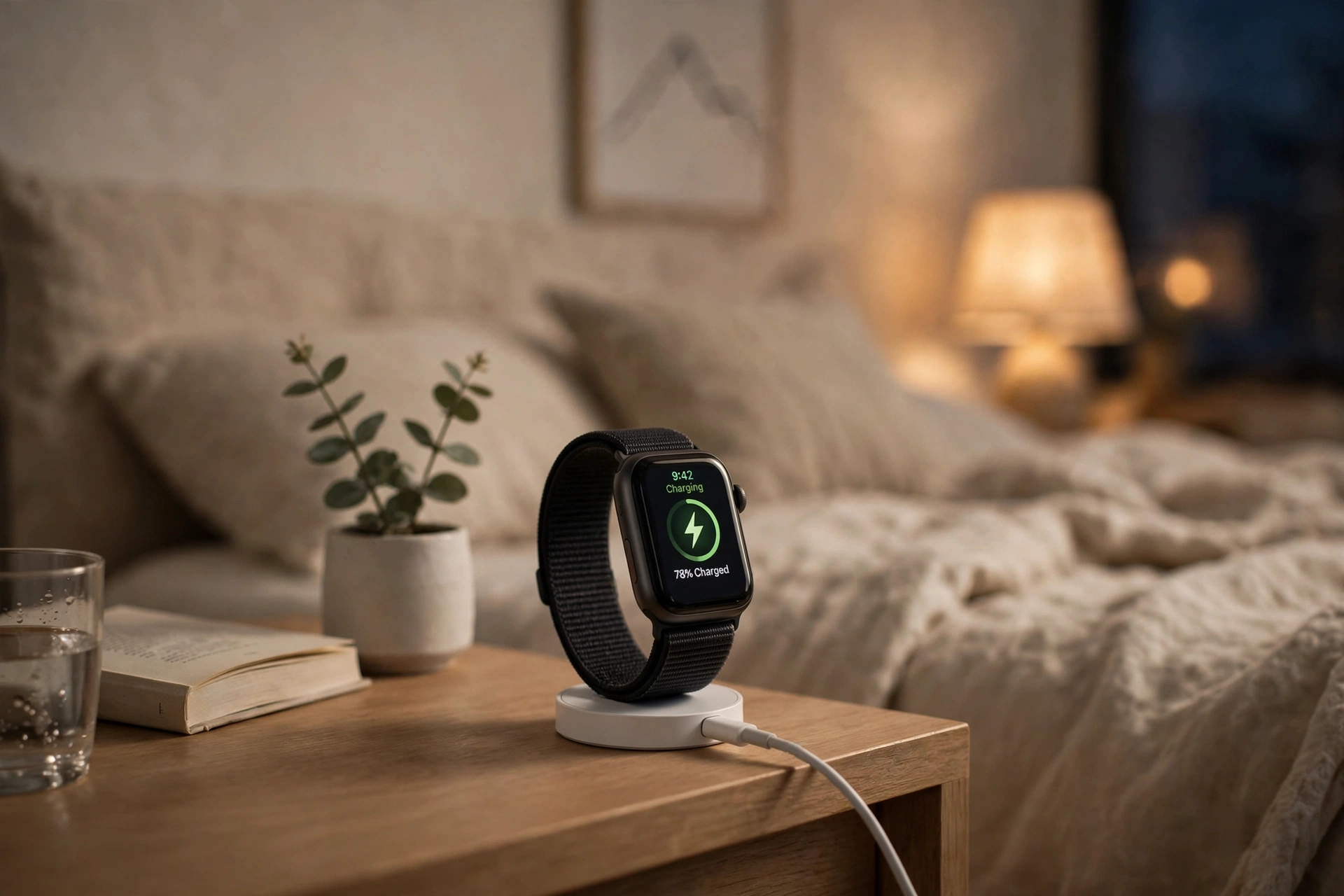
| Time | What to do |
|---|---|
| Evening, after dinner | Put the watch on the charger while you wind down — 30–45 minutes on a fast charger adds most of a day’s charge |
| Before bed | Check the battery is above 30%; if the watch prompts you to charge, do it — tracking will not start reliably below 30% |
| Morning | Charge again while you shower and get ready; 15–20 minutes tops it back up |
| Weekend catch-up | If the battery ran low overnight, a 30-minute charge in the morning covers it |
Fast charging helps a lot here: Apple Watch Series 7 and later charge from 0 to 80% in about 45 minutes, and Ultra models charge quickly too, so the evening top-up is genuinely a 30-minute job, not an overnight one. Turn on Charging Reminders (Watch app > Sleep) so the watch tells you when it is charged enough to last the night.
If your battery is draining faster than it should during the day, the causes are usually the same handful of settings. Our guide to why a smartwatch battery drains so fast walks through the nine fixes that actually work, including the Always On display and background app refresh, which matter most on an Apple Watch.
Apple Watch Sleep Tracking Problems and Fixes
| Problem | Likely cause | Fix |
|---|---|---|
| No sleep data in the morning | Track Sleep with Apple Watch is off, or Sleep Focus never started | Watch app > Sleep: turn on Track Sleep with Apple Watch and Sleep Focus; check the schedule days are correct |
| Sleep stages missing, only total time shown | Watch is Series 3, or watchOS is older than 9 | Stages need Series 4+ with watchOS 9+; update watchOS or accept total-time tracking |
| No Sleep Score | watchOS older than 26, or an unsupported model | Score needs watchOS 26 on Series 6+ / SE 2+ / Ultra, with iPhone on iOS 26 |
| Data stops partway through the night | Battery died overnight | Charge before bed (above 30%); turn on Charging Reminders |
| Gaps in the chart, or the watch thinks you woke up often | Band too loose, sensors losing contact | Snug fit, one finger-width gap; try a different band or wrist if the sensor sits over a tattoo |
| Alarm did not sound | Alarm off, or Silent Mode behaviour misunderstood | Check the alarm toggle in the Sleep schedule; the watch alarm uses haptics first, sound second — set Sounds & Haptics to your preference |
| Sleep Focus turns on too early or too late | Wind Down period or schedule times wrong | Health app > Sleep > Sleep Schedule: adjust Wind Down and bedtime |
| Data on the watch but not on the iPhone | Sync delay or Bluetooth off | Keep the watch near the iPhone, Bluetooth on; data usually syncs within minutes of waking |
If tracking worked and then stopped after a watchOS update, check the Sleep toggles first — updates occasionally reset them. Do not delete and re-add your sleep schedule unless nothing else works: you lose nothing by re-adding it, but it is rarely the cause.
Apple Watch vs the Competition for Sleep Tracking
Apple is not the only way to track sleep, and it is honest to say where it stands. Fitbit and Oura both show a nightly sleep score too, and Oura’s readiness score folds in HRV and resting heart rate, which Apple’s Sleep Score deliberately leaves out. Garmin tracks sleep stages with a similar accelerometer-plus-heart-rate method and adds a morning report with a Body Battery figure.
Where the Apple Watch wins is convenience: the score, the stages, the Vitals trends, and the alarm all live on the wrist you are already wearing, with no subscription. Fitbit Premium and Oura both charge monthly for their full sleep breakdowns; Apple Health shows everything free. Where it loses is battery: a Garmin or Oura Ring lasts days or a week, so there is no charging routine to manage, while the Apple Watch needs the evening top-up every single day.
If you already own an Apple Watch, its sleep tracking is good enough that buying a second device just for sleep rarely makes sense. If you do not own one and sleep is your main reason for buying, the charging routine is the real cost to weigh — not the price of the watch.
FAQs
Does Apple Watch sleep tracking work without an iPhone nearby?
Yes, once it is set up. The watch records the night on its own and syncs the data to the Health app when it reconnects to your iPhone. Setup and viewing long-term trends need the iPhone, but the overnight recording does not.
How accurate is Apple Watch sleep tracking?
Apple estimates sleep from movement and heart rate, not brain waves, so it is a good estimate rather than a clinical measurement. Total sleep time is usually close; stage splits (REM, Core, Deep) are rougher and best read as trends over weeks, not exact minutes on one night. It is not a medical device and cannot diagnose sleep apnoea or any other sleep disorder.
Why does my Apple Watch say I was awake when I was asleep?
Usually the band was loose, the watch slid around, or you were lying still but awake and the watch read the stillness as light sleep followed by a wake. A snug fit fixes most of this. Lying still while reading in bed before Sleep Focus starts can also confuse the first part of the night — start Wind Down earlier so tracking begins before you pick up the book.
Can I track sleep without setting a sleep schedule?
You can wear the watch to bed with Track Sleep with Apple Watch on and get a basic overnight record, but without a schedule and Sleep Focus the recording is less reliable and you get no Sleep Score, no Wind Down, and no alarm. The five-minute setup is worth it.
What is a good Apple Watch Sleep Score?
Apple calls 81–95 High and 96–100 Very High. For most adults, landing in the 80s most nights is a good result — that usually means you hit your sleep goal, kept a fairly steady bedtime, and woke only briefly. A score in the 60s or below on a one-off night is normal after travel, illness, or a late night; it only matters if it stays low for a week or more.
Does wearing my Apple Watch to bed drain the battery?
Sleep tracking itself uses very little battery — roughly 10–15% overnight on a healthy battery. The bigger drain is going to bed with a low battery in the first place. Charge to at least 30% before bed and the watch will comfortably last until morning.
Disclaimer
This article is for general information only and is not medical advice. Apple Watch sleep tracking is a wellness feature, not a medical device: it cannot diagnose sleep apnoea, insomnia, or any other sleep disorder, and its stage estimates are not a substitute for a clinical sleep study. If you snore heavily, gasp in your sleep, feel exhausted despite a full night, or fall asleep during the day, talk to a doctor or a sleep specialist rather than relying on a watch. Always follow your clinician’s advice over anything a wearable tells you.