
Smart home security systems are cameras, video doorbells, smart locks and sensors that work together through one app to watch your doors, record who comes and goes, and let you lock up from anywhere. The best setup for most homes in 2026 is a video doorbell, one smart lock, and two or three cameras — bought in that order, on one ecosystem, with local storage or a single subscription, not a pile of gadgets from five different brands. This guide explains what each piece does, what the current models cost (including the subscriptions most roundups hide), and the privacy settings to change on day one.
In This Guide
- How smart home security systems actually work
- Start with your entry points, not a shopping list
- Video doorbells: the first camera to buy
- Outdoor and indoor cameras: cloud vs local storage
- Smart locks: which one fits your door
- What a smart home security system really costs over 3 years
- Privacy settings to change on day one
- Cameras, neighbours and the law
- Three starter setups: $150, $400 and $900
- Frequently asked questions
How Smart Home Security Systems Actually Work
A smart home security system has four parts, and every product on the shelf is one of them.
Sensors notice something: a door opening, motion on the porch, a window breaking. Cameras record what happened. Locks control who can get in. And a hub or app ties them together, so a doorbell press can turn on the porch light, or a lock unlocking at 6 pm can disarm the cameras inside.
Most systems run on one of three platforms — Amazon Alexa, Google Home, or Apple Home — and the platform you pick matters more than any single device, because devices from the same platform share automations, alerts, and one app. If you already have an Echo, a Nest Hub, or a HomePod, start there. Our guide to choosing a smart home ecosystem compares Alexa, Google Home and Apple HomeKit in detail, and our guide to starting a smart home walks through the first-week setup.
The other thing to decide early is where your video lives. Cloud storage means clips upload to the manufacturer’s servers and you pay a monthly fee to watch them back. Local storage means clips stay on a hard drive or memory card inside your house, with no monthly fee — but if someone steals the camera, the footage goes with it. There is no universally right answer; there is a right answer for how much you care about monthly fees versus privacy, and this guide gives you both options at every step.
One honest note before the shopping starts: no consumer system guarantees your home will never be broken into, and no ranking on this page is a promise of day-one search traffic or safety. What a good system does is make a break-in harder, noisier, and better recorded — and make your daily life (letting in the dog walker, checking a package arrived) noticeably easier.
Start With Your Entry Points, Not a Shopping List
The most common mistake in smart home security is buying devices in isolation: a camera for the garden, a sensor for a window nobody uses, a doorbell because it was on sale. The result is five apps, three subscriptions, and a back door with nothing on it.
Do it the other way round. Walk around your home and list how someone would actually get in: front door, back door, ground-floor windows, garage door, side gate. Defend those paths first, in this order:
- Front door — a video doorbell plus a smart lock. This is where most visitors, deliveries, and attempted entries happen.
- Back door and ground-floor windows — one outdoor camera covering the back, plus contact sensors on the doors and windows you can reach from the ground.
- Inside — only after the outside is covered. An indoor camera in the main living area, or motion sensors if cameras indoors feel intrusive.
Everything else — garden cameras, garage sensors, smoke and water-leak detectors — layers on top of a foundation that already works. A $150 setup that covers your front door properly protects you better than a $900 pile of cameras pointed at the wrong places.
Video Doorbells: The First Camera to Buy
A video doorbell is the single highest-value security device you can buy, because it does three jobs at once: it records everyone who approaches your front door, it lets you answer the door from anywhere, and it deters opportunists who can see they are being filmed. If you buy one security device this year, buy this one.
The catch is the subscription. Most doorbells are cheap hardware sold to get you onto a monthly plan, and the plan — not the doorbell — is the real price. Ring renamed its plans in 2026: the entry tier is now Ring Protect Solo at $4.99 a month ($49.99 a year) for one device, and without it a Ring doorbell records nothing. Google replaced Nest Aware with Google Home Premium on October 1, 2025: Standard is $10 a month ($100 a year) for 30 days of event history, Advanced is $20 a month ($200 a year) for 60 days plus continuous recording on wired cameras. Eufy is the exception: its doorbells record to local storage with no subscription at all.
| Video doorbell | Price (late 2026) | Video | Subscription for recordings | Best for |
|---|---|---|---|---|
| Eufy Video Doorbell E340 | ~$180 (often ~$120 on sale) | 2K, dual cameras (face + packages) | None — local storage included | No monthly fees, ever |
| Google Nest Doorbell (Battery, 2nd gen) | ~$180 (often ~$130 on sale) | 960 x 1280, 145° field of view | Optional — 3 hours of event history free | Google Home households, best AI alerts |
| Ring Battery Doorbell Pro (2nd gen) | ~$250 | 4K, 150° field of view | Required — Ring Protect Solo $4.99/mo | Alexa households, best image quality |
| Aqara Video Doorbell G4 | ~$130 | 1080p, 162° field of view | None with Apple HomeKit Secure Video | Apple Home households |
A few buying notes. The Nest Doorbell (Battery) works wired as well as on battery, despite the name, and its 3 hours of free event history — with person, package, and animal detection — is the best free tier in the category. The Eufy E340’s second, downward-facing camera is genuinely useful: it watches packages on the porch, which is the thing most doorbell owners actually check. The Aqara G4 is the only mainstream doorbell with native Apple HomeKit Secure Video, so its recordings are encrypted and stored in your iCloud plan instead of a manufacturer’s cloud. And if you rent, pick a battery doorbell — no wiring, no drilling, and you take it with you when you move.
Outdoor and Indoor Cameras: Cloud vs Local Storage
Once the front door is covered, add cameras where they watch entry points, not where they look impressive. One outdoor camera covering the back door and garden beats three cameras watching the same driveway.
Outdoor cameras need weather resistance (look for IP65 or better), night vision that actually works past 10 metres, and a power plan: battery cameras are easy to place anywhere but need charging every few months; wired cameras never need charging but need a cable run; Power over Ethernet (PoE) cameras get power and data through one cable and are the most reliable option if you can run the cable.
Indoor cameras are a different decision, because they film inside your home. Many people skip them entirely and use motion and contact sensors instead — sensors tell you a door opened without filming your living room. If you do want an indoor camera, pick one with a physical privacy shutter or a schedule that turns it off automatically when you are home, and never put a camera in a bedroom or bathroom.
The storage question decides your monthly bill:
| Storage type | How it works | Monthly cost | Privacy | Risk |
|---|---|---|---|---|
| Cloud (Ring, Nest, Arlo) | Clips upload to the manufacturer’s servers | $5–$20/month per plan | Footage leaves your home; terms can change | Safe from theft, but you rent access to your own video |
| Local (Eufy HomeBase, Reolink NVR) | Clips stay on a hard drive or card in your house | $0 | Footage never leaves your home | A stolen camera can take the footage with it |
| Apple HomeKit Secure Video | Clips encrypted, stored in iCloud | $0 extra beyond your iCloud plan | End-to-end encrypted; Apple cannot view it | Needs an Apple TV or HomePod as a hub |
The privacy-first stack is local storage plus a hub you control. If that appeals to you, our guide to whether you need a smart home hub explains the hub options, and our Matter vs Zigbee vs Z-Wave comparison covers the protocols that keep devices talking locally instead of through the cloud.
Smart Locks: Which One Fits Your Door
A smart lock is not about being lazy. It is about never hiding a spare key under a mat again, giving the dog walker a code that stops working on Friday, and knowing the door actually locked when you left. The lock you buy depends on your door and your platform more than on any feature list.
| Smart lock | Price (late 2026) | Type | Fingerprint | Apple Home Key | Matter | Best for |
|---|---|---|---|---|---|---|
| Schlage Encode Plus | ~$300–$340 | Full deadbolt replacement | No | Yes | No | Apple users who want the strongest lock |
| Yale Assure Lock 2 | ~$200–$300 | Full deadbolt replacement | No | Yes (with module) | Yes | Maximum platform flexibility |
| Yale Assure Lock 3 Ultra | ~$349 | Full deadbolt replacement | No | Yes | Yes | Hands-free unlocking (ultra-wideband) |
| Aqara Smart Lock U200 | ~$180–$230 | Retrofit — keeps your existing deadbolt | Yes | Yes | Yes | Renters, and the best value |
| August Wi-Fi Smart Lock | ~$200–$280 | Retrofit — keeps your existing deadbolt | No | Yes | No | Renters who want a 10-minute install |
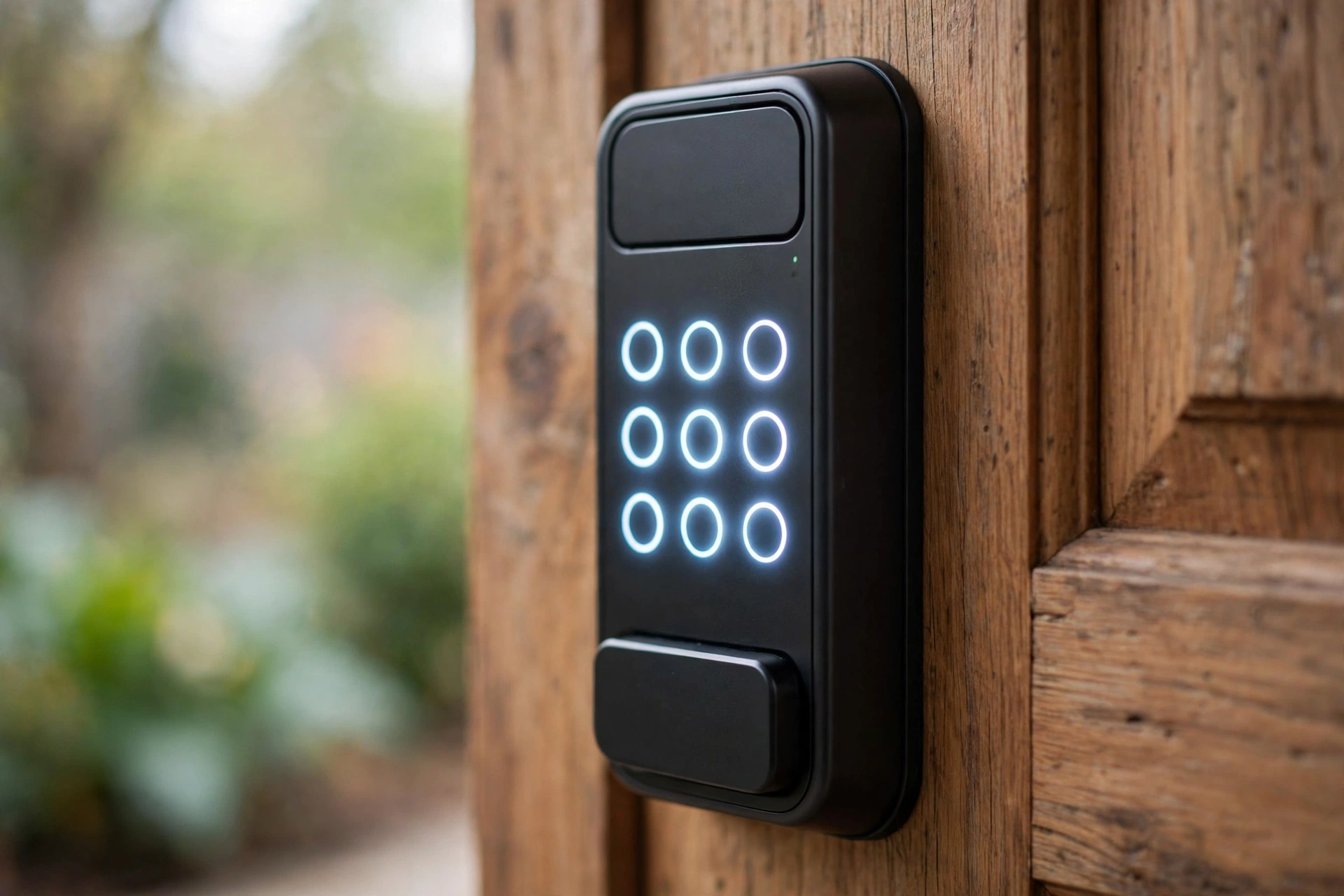
Three things to check before you buy any of them. First, physical security grade: the Schlage Encode Plus is ANSI/BHMA Grade 1, the highest residential rating — most smart locks are Grade 2, which is fine for a normal home but worth knowing. Second, retrofit vs replacement: retrofit locks (Aqara U200, August) bolt onto the inside of your existing deadbolt, so your keys still work and your landlord never needs to know; replacement locks swap the whole deadbolt and need a standard US deadbolt hole. Third, what happens when the power or Wi-Fi dies: every lock here still opens with a physical key or a code entered on the keypad, and the batteries last 6 to 12 months — but check the battery warning in the app before a trip, not after.
What a Smart Home Security System Really Costs Over 3 Years
Hardware prices lie. A $100 doorbell with a $10-a-month plan costs $460 over three years; a $180 doorbell with no plan costs $180. Judge systems by the three-year total, not the box price.
| Setup | Hardware | Subscription (3 years) | 3-year total |
|---|---|---|---|
| Budget, no subscription: Eufy E340 doorbell + Aqara U200 lock | ~$300 | $0 | ~$300 |
| Google household: Nest Doorbell + Yale Assure Lock 2 | ~$380 | $300 (Google Home Premium Standard, $100/yr) | ~$680 |
| Alexa household: Ring Battery Doorbell Pro + Schlage Encode Plus | ~$550 | $150 (Ring Protect Solo, $50/yr) | ~$700 |
| Apple household: Aqara G4 doorbell + Schlage Encode Plus | ~$430 | $0 (HomeKit Secure Video uses your iCloud plan) | ~$430 |
| Full local system: Eufy doorbell + 2 Eufy cameras + Aqara U200 | ~$540 | $0 | ~$540 |
Two lessons fall out of that table. First, the no-subscription setups are cheaper over three years even when the hardware costs more upfront. Second, the subscription is a household decision, not a device decision: one Ring Protect or Google Home Premium plan covers multiple devices, so the second camera is much cheaper than the first.
Privacy Settings to Change on Day One
Cameras and locks collect the most sensitive data in your home — when you leave, when you come home, who visits, what your children look like. The manufacturers’ defaults are set for their convenience, not yours. Change these the day you install anything:
- Turn on two-factor authentication on every smart home account, preferably with an authenticator app rather than text messages. The account, not the device, is the weakest point.
- Use a unique password for each smart home account, stored in a password manager. A reused password from an old breach is how most smart cameras get “hacked”.
- Turn on automatic firmware updates in every device app. Updates fix security holes; a camera running 2024 firmware is a known target.
- Set video to record locally, or turn on end-to-end encryption, wherever the option exists. Eufy, Reolink, and Apple HomeKit Secure Video all offer it — check it is actually switched on, not just available.
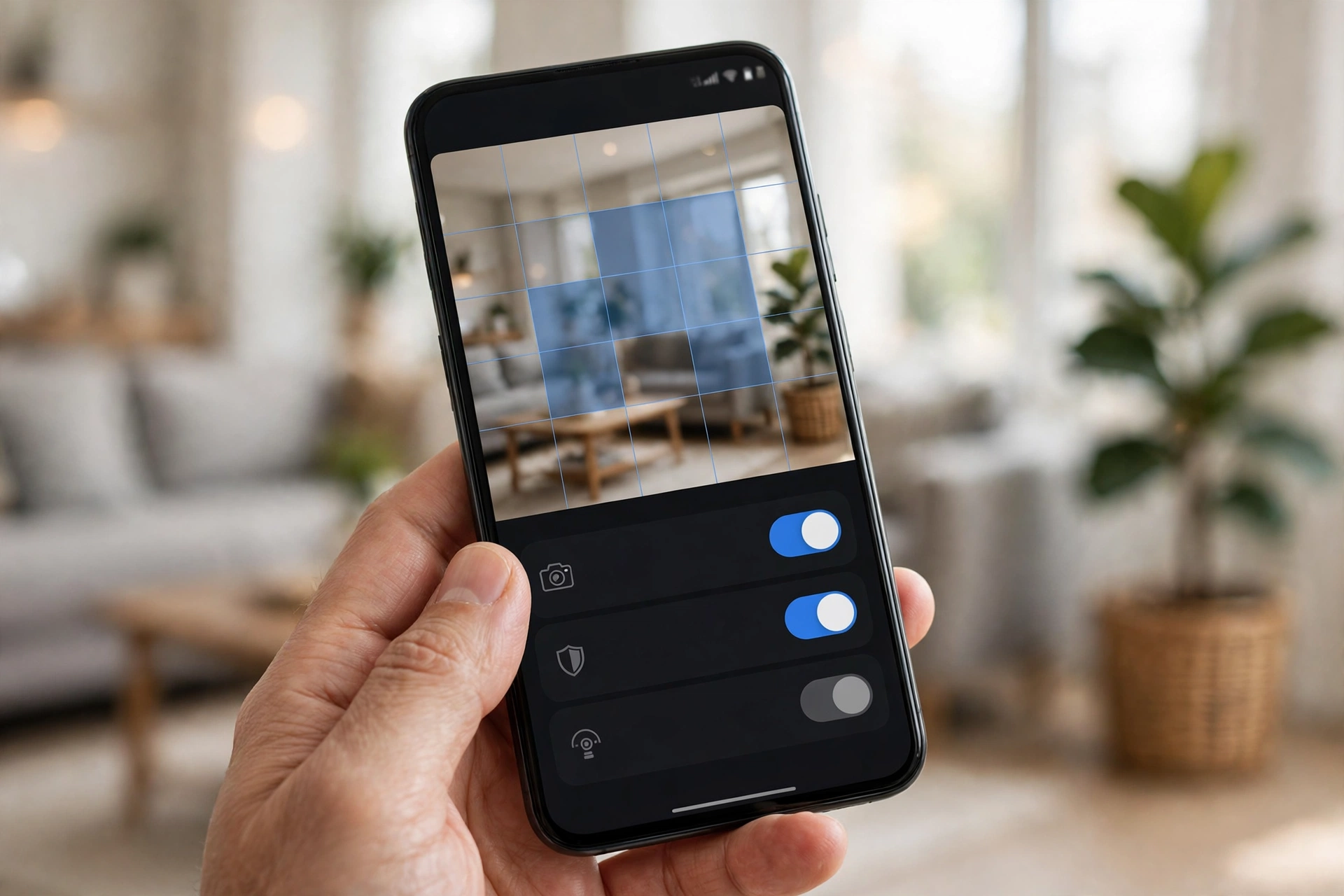
- Set privacy zones to mask neighbours’ windows, gardens, and the public pavement. Most camera apps let you black out areas of the frame; use them.
- Set indoor cameras to turn off when you are home. Use a schedule or a home/away mode so the living-room camera is not filming you eating dinner.
- Turn off audio recording if you do not need it. Video of your porch is one thing; a microphone recording your neighbours’ conversations is another, and in some places it is legally different too.
- Review who has access. Remove old house-sitters, ex-flatmates, and installers from shared access, and check whether your camera app shares clips with any community or neighbourhood feature — turn that off unless you actively want it.
- Put cameras on a separate Wi-Fi network or a guest network if your router supports it. If a camera is ever compromised, it cannot then reach your laptop or your files.
- Delete old recordings regularly. Set the shortest retention your plan allows — 30 days is plenty for most homes — and delete clips you do not need.
Cameras, Neighbours and the Law
This is general information, not legal advice, and the rules vary by country and by US state — check your local rules before you point a camera anywhere beyond your own property.
In most US states, filming your own property is legal, and filming a public street from your doorbell is generally allowed. Recording audio is treated more strictly than video in several states, which is one reason to turn the microphone off if you do not need it. In the UK and EU, data protection rules apply to home cameras that film beyond your property boundary: you should tell neighbours, use privacy zones to mask their property, and keep recordings only as long as you need them. Wherever you live, the polite rule and the legal rule point the same way: film your own property, mask everyone else’s, and do not share clips of neighbours or passers-by publicly.
Three Starter Setups: $150, $400 and $900
About $150 — the front door, done. A Eufy E340 doorbell on sale (~$120) and a pack of two contact sensors (~$30) on the front and back doors. No subscription, no lock yet, but every entry is watched and every opening is logged.
About $400 — the solid beginner system. Eufy E340 doorbell (~$180), Aqara U200 smart lock (~$200), and contact sensors on the ground-floor doors and windows. No monthly fees, one app for the doorbell, and the lock gives you codes for visitors instead of spare keys.
About $900 — the full local system. Eufy E340 doorbell, Aqara U200 lock, two Eufy outdoor cameras with a HomeBase (~$300), contact sensors throughout the ground floor, and a smart plug that turns the porch light on when the doorbell detects motion after dark. Still no subscription, and everything records locally in your house.
If you are starting from zero and want the full first-week plan — which order to buy in, how to set up the app, and what not to buy first — our guide to starting a smart home covers it step by step.
Frequently Asked Questions
Do smart home security systems need a monthly subscription?
Not always. Ring and Google Nest doorbells and cameras need a subscription (Ring Protect Solo from $4.99 a month, Google Home Premium Standard from $10 a month) to save and replay recordings. Eufy, Reolink, and Apple HomeKit Secure Video record locally or to your iCloud plan with no extra subscription. Always check the subscription cost before you buy the hardware — it is usually the bigger number over three years.
Are smart locks safe, or can they be hacked?
A good smart lock is as safe as a good traditional lock, and in some ways safer: there is no spare key to copy, codes can be revoked instantly, and you get an alert if someone tries the wrong code repeatedly. The real risk is a weak account password or missing two-factor authentication, not the lock itself. Buy a Grade 1 or Grade 2 lock from a known brand, turn on two-factor authentication, and keep the firmware updated.
Can I use a smart home security system without Wi-Fi?
Partly. Locks, sensors, and cameras using Zigbee, Z-Wave, Thread, or Matter can talk to a local hub without the internet, and local-storage cameras keep recording during an outage. But remote viewing, phone alerts, and cloud recordings all need Wi-Fi. If your internet is unreliable, choose local storage and a hub-based system rather than a cloud-only one — our guide to whether you need a smart home hub explains the difference.
Is it legal to point a security camera at the street?
In most US states, yes — filming a public street from your own property is generally allowed, though recording audio is restricted in some states. In the UK and EU, cameras that film beyond your property must follow data protection rules: use privacy zones, keep recordings briefly, and tell your neighbours. This is general information, not legal advice — check your local rules.
Do smart cameras work during a power cut?
Battery cameras keep working until their battery runs out. Wired cameras stop when the power stops, unless they are on a UPS or a Power over Ethernet switch with battery backup. Smart locks keep working on their own batteries regardless of mains power. If power cuts are common where you live, battery cameras and a lock with a physical key are the safer picks.
Which smart home security system is best for privacy?
The most private setup is local storage plus local control: Eufy or Reolink cameras recording to a hard drive in your house, an Aqara or Yale lock using Matter over Thread, and a hub such as Home Assistant or Apple Home that processes automations locally. Apple HomeKit Secure Video is the most private cloud option, because footage is end-to-end encrypted. Avoid cloud-only systems if you do not want your video on a manufacturer’s servers.
Disclaimer: This article is general information about smart home security products, not legal or security advice. Prices and subscription plans change often — check the manufacturer’s current pricing before you buy. Camera and recording laws vary by country and US state; check your local rules before installing cameras that film beyond your property.