
Your iPhone already counts your steps for free — you do not need an Apple Watch, and you do not need to buy an app. If you want to count your steps on iPhone, open the built-in Health app, pin Steps to your Summary screen, and your daily total is right there, counted automatically in the background whenever your phone is in your pocket. This guide shows you exactly how to set that up, how to put your step count on your Home Screen, which free step counter apps are actually worth installing, and what to do when the number looks wrong.
How to Count My Steps on iPhone in the Health App
The Health app is already on your iPhone, and it has been counting your steps since the day you first set the phone up — it just does not show the number on your Home Screen until you pin it. Here is the setup, which takes about a minute on iOS 26.
1. Make sure step tracking is turned on
- Open Settings.
- Tap Privacy & Security.
- Tap Motion & Fitness.
- Turn on Fitness Tracking, and make sure Health is allowed in the list below it.
This is the one setting that matters. If Fitness Tracking is off, your iPhone records nothing, and no step counter app — free or paid — can fix that, because third-party apps read their step data from Apple Health.
2. Pin Steps to your Health Summary
- Open the Health app.
- Tap the Summary tab.
- Tap Edit next to Pinned.
- Tap the pushpin icon next to Steps (add Activity, Flights Climbed and Walking + Running Distance too if you want them).
- Tap the check mark to save.
Your daily step count now sits at the top of the Summary screen every time you open Health.
3. Read your step count
Tap Steps on the Summary screen to open the full chart. Along the top you can switch between D (day), W (week), M (month), 6M (six months) and Y (year), so you can see whether this week is better than last month at a glance. The bar graph shows each day’s total, and scrolling down shows your average, plus how your recent trend compares with earlier weeks.
If you would rather check steps without opening Health, the free Fitness app shows the same number: open Fitness, tap the Steps tile on the Summary screen, and you get the same day, week, month and year views in a more visual layout.
How Does an iPhone Count Steps?
Inside your iPhone is an accelerometer — a tiny sensor that measures movement. When you walk, your body bounces and sways in a rhythm, and the phone picks that rhythm up through the accelerometer and the motion coprocessor that processes it. The phone turns that rhythm into a step count, estimates your stride length from the height you entered in your Health profile, and uses it to work out distance and flights climbed too.
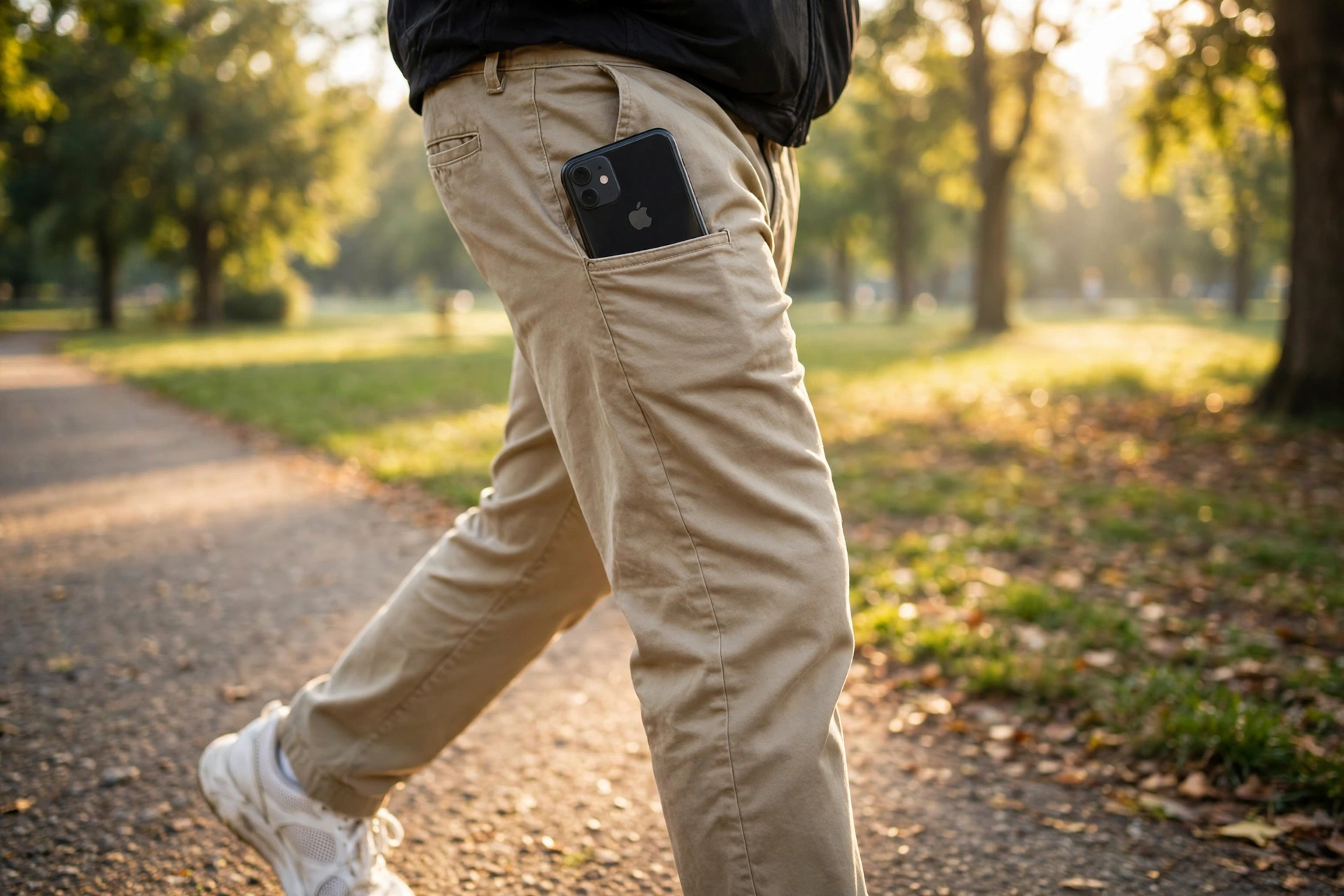
How accurate is it? A 2024 peer-reviewed study testing the iPhone Health app on straight-line and zigzag walking reported an error rate below 4%, between 2.37% and 3.78% on flat, downhill and uphill walking, with participants carrying the phone. In plain terms: if you actually walked 10,000 steps, your iPhone will usually show somewhere between about 9,600 and 10,400. That is good enough for a daily goal, a trend, or a walking challenge — it is not a medical measurement, and it was never designed to be one.
The count is only as good as how often the phone is on your body. A front trouser pocket, a jacket pocket or a waistband holder works well. A handbag, a desk drawer or a phone left on the kitchen counter does not count anything, which is the single most common reason people’s numbers look low. We cover the full list of causes in the fixes section below — and if your steps are wrong on a watch rather than a phone, see Smartwatch Not Counting Steps Correctly? How to Fix It, which covers wrist placement, calibration and sensor problems in detail.
How to See Your Steps on Your iPhone Home Screen
Opening the Health app every time gets old. A widget puts your step count where you already look — on the Home Screen or the Lock Screen — and updates through the day. There are two ways to get one.
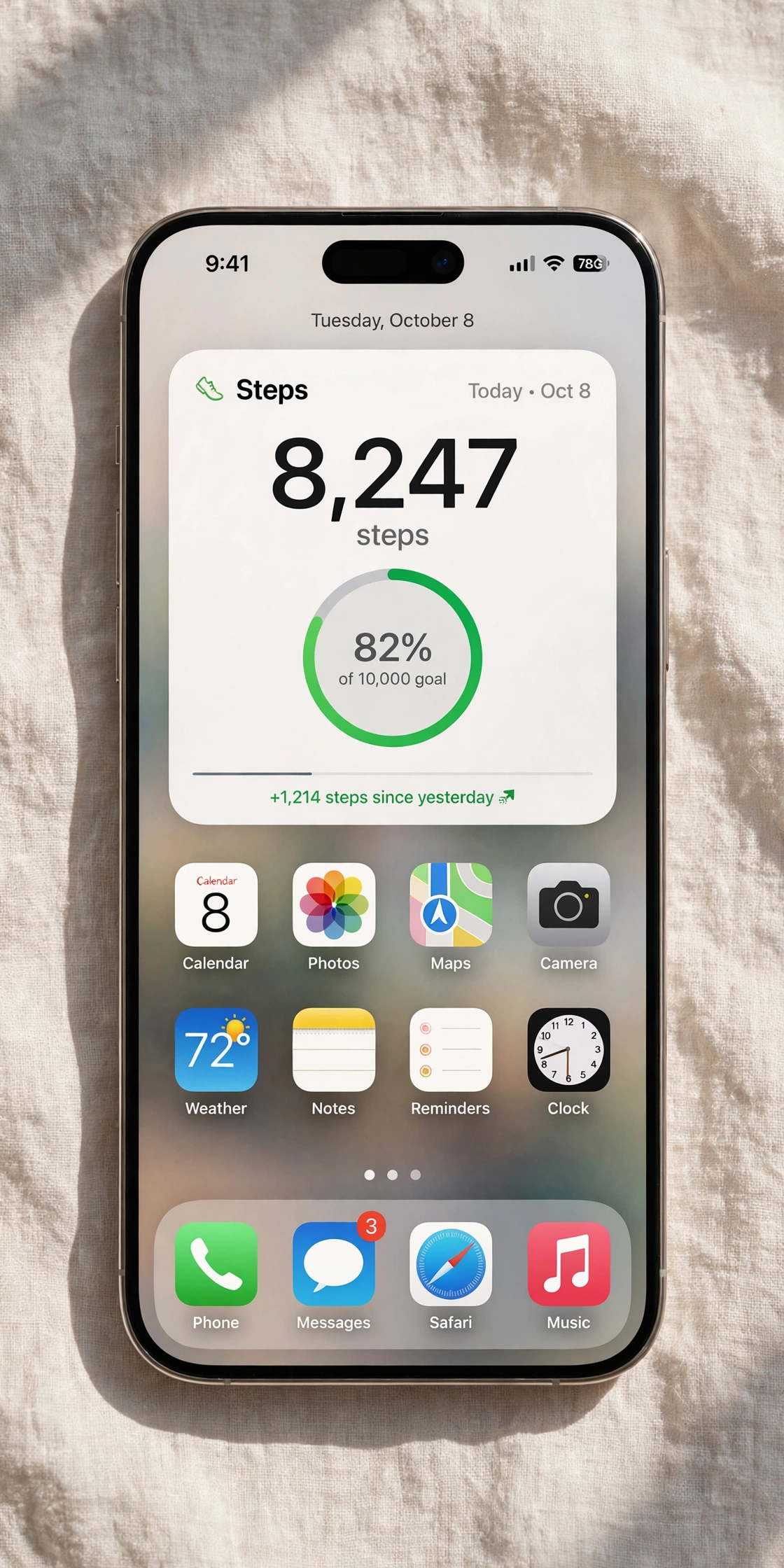
Use a free step counter app’s widget
The Health app itself does not offer a step widget, so this is the one job a third-party app does better. Install one of the free apps in the comparison table below — Pedometer++, StepsApp and Stepzy all offer widgets — then add it:
- Touch and hold your Home Screen background until the apps jiggle.
- Tap Edit at the top, then tap Add Widget.
- Search for the app (Pedometer++, StepsApp or Stepzy), pick the step-count widget size, and tap Add Widget.
The widget reads the same Apple Health data as the Health app, so the number matches — it just shows it without opening anything.
Add steps to your Lock Screen
Stepzy and Pedometer++ also offer Lock Screen widgets, so your step total is visible with a glance at the phone, without unlocking it. Long-press the Lock Screen, tap Customise, then add the widget to the Lock Screen row. This is the setup we would pick if your only goal is “see my steps, fast”.
The Best Free Step Counter Apps for iPhone in 2026
Every app in this table counts steps for free. The differences are the extras: widgets, goals, challenges, and how much of the app sits behind a paywall. All of them read step data from Apple Health, so set up Fitness Tracking first (above) — an app cannot count what Health never recorded.
| App | Free on iPhone? | Widgets | Best for | Watch out for |
|---|---|---|---|---|
| Apple Health | Yes — built in, free | No step widget | Zero setup; the number is already there | No widget, no goal celebrations |
| Pedometer++ | Yes — free, optional Premium | Home Screen and Lock Screen | A no-fuss daily step count with a clear chart | Premium adds themes and extra stats you may not need |
| StepsApp | Yes — free, optional paid tier | Home Screen | A clean, simple step count with goals and widgets | Some charts and reports are paid |
| Pacer | Yes — free, optional paid tier | Home Screen | Walking goals, GPS walks, challenges and groups | Social and challenge features push the paid tier |
| Stepzy | Yes — free | Home Screen and Lock Screen | A live daily step ring, goals and streaks | Newer app, smaller community than Pacer |
Apple Health — the one you already have
Apple Health is the default answer, and for most people it is the right one. It is free, it is built in, it keeps your data on your device, and it already has your full step history going back to when you first set up the phone. Its only real weakness is presentation: there is no step widget, and there is no daily goal celebration. If you just want to know how much you walked, stop here.
Pedometer++ — the best free step widget
Pedometer++ is the simplest dedicated step counter for iPhone, and our pick if you want a widget. It is free, it shows your daily steps in a clear chart, it lets you set a goal (the default is 10,000 steps a day) and it gives you a confetti shower when you hit it. The optional Premium subscription adds themes and extra statistics, but the core step count, chart and widget are free. If you are new to wearables in general, What Is a Smartwatch explains what these devices do beyond counting steps — but for step counting alone, Pedometer++ is the one to install first.
StepsApp — the cleanest simple counter
StepsApp keeps things simple: a big step count, daily, weekly and monthly charts, goals and Home Screen widgets, with calories and distance free as well. It syncs with Apple Health and with Apple Watch. It is the best choice if Pedometer++ feels too bare and Pacer feels too busy.
Pacer — best for walking challenges
Pacer is the pick if motivation is the problem, not the counting. It counts steps in the background, tracks GPS walks, and lets you join walking challenges and groups. The core features are free; the paid tier adds guided plans and deeper reports. It is the only app here that turns step counting into something social, which is genuinely useful if a daily goal alone does not get you out the door.
Stepzy — best live step ring
Stepzy is a free step counter that reads the same Apple Health data and keeps it on your device. It adds a live daily step ring plus Home Screen and Lock Screen widgets, goals and streaks, and an Apple Watch app. It is the newest of the five and the most focused on the “glance and go” experience — if you want your steps visible the moment you pick up your phone, Stepzy is the one built for that.
One app to avoid in 2026: Google Fit
If you see an older guide recommending Google Fit for iPhone, ignore it. Google is phasing Google Fit out by the end of 2026 and replacing it with Google Health (the app that used to be called Fitbit). Google Health works on iPhone, but for step counting on an iPhone there is no reason to route your data through a Google account when Apple Health already does the job for free. Do not install Google Fit on the strength of a 2024 or 2025 recommendation.
iPhone and Apple Watch: How Step Counting Works Together
If you own an Apple Watch as well as an iPhone, both devices count your steps — but Health does not add them together and double your total. Apple Health merges the two sources and, when both are worn, the watch’s count takes priority, because the watch is on your wrist all day while the phone spends time on desks and chargers.
That means the best setup is simple: wear the watch, carry the phone when you can, and let Health combine them. If you leave the phone at home and walk with only the watch, your steps still appear in Health, synced from the watch. If you leave the watch charging and walk with only the phone, the phone’s count fills in. The gap to watch for is the opposite: a day when you wore neither device on your body — no sensor, no steps, and no app can recover what was never recorded.
If you want to get more out of the watch side of this, Apple Watch Sleep Tracking: How to Set It Up and Read Your Results covers watchOS sleep stages and the overnight charging routine that keeps step tracking running all day. And for the general settings that make a watch track better — wrist fit, calibration, and what to turn off — see Best Smartwatch Settings for Better Sleep Tracking.
Why Is My iPhone Not Counting Steps? 7 Fixes
If your step count is stuck at zero, far too low, or suddenly much lower than usual, work through this list in order. In our experience the first two fixes solve most cases.
| Problem | Most likely cause | Fix |
|---|---|---|
| Steps stuck at zero | Fitness Tracking is off | Settings > Privacy & Security > Motion & Fitness > turn on Fitness Tracking, and allow Health |
| Count far too low | Phone not on your body | Carry the phone in a front pocket, jacket pocket or waistband holder while walking |
| Count suddenly dropped | Health app lost its permission | Settings > Privacy & Security > Motion & Fitness > check Health is allowed |
| Steps missing for one day | Phone was left behind or flat | Add the missing steps manually (see below); nothing can recover unrecorded steps |
| Count looks high | Shaking, driving on rough roads, or a treadmill | Keep the phone still on smooth rides; treadmill steps are estimated, not exact |
| Third-party app shows nothing | App has no Health permission | Settings > Privacy & Security > Motion & Fitness > allow the app; or open the app and grant Health access |
| Number differs from your watch | Both devices counted | Normal — Health merges watch and phone data and prioritises the watch; check Health, not the app, for the combined total |
If you have worked through the list and the count is still wrong, restart the iPhone — it clears the motion-processor state more often than you would expect — and then check for an iOS update. A step counter that worked yesterday and stopped today is almost always a permission or a restart away from working again, not a broken sensor.
How to Add Steps Manually in the Health App
If you went for a walk or a hike without your phone, you can add the steps by hand so your history stays complete. It is an estimate, and it will not be as accurate as the sensor count, but it keeps your weekly trend honest.
- Open the Health app and tap Browse.
- Tap Activity, then Steps.
- Tap Add Data in the top right corner.
- Enter the date, time and the number of steps.
- Tap Add to save the manual entry.
Only add steps you actually walked. Adding a round number to hit a goal defeats the purpose of tracking in the first place, and a manually entered total is marked as manual data in Health, so it is easy to spot later.
What Is a Realistic Daily Step Goal?
The famous 10,000-steps-a-day target started as a marketing slogan for a 1960s Japanese pedometer, not as a medical recommendation — but it stuck because it is a clear, memorable number. For most adults, research points to real health benefits building up well before 10,000: roughly 7,000 to 8,000 steps a day is associated with most of the mortality benefit for adults under 60, and around 6,000 to 8,000 for older adults.
The honest advice is to start from your own baseline, not from a round number. Check your average in the Health app over the past two weeks, then add 1,000 steps a day for the next two weeks. A goal you can hit five days out of seven beats a goal you hit once and abandon. Set the target in whichever app you chose above — Pedometer++ defaults to 10,000, StepsApp and Pacer let you pick your own — and let the widget, not willpower, remind you.
Frequently Asked Questions
How do I count my steps on iPhone without an Apple Watch?
You do not need an Apple Watch. Your iPhone counts steps on its own using its accelerometer and motion coprocessor. Turn on Fitness Tracking in Settings > Privacy & Security > Motion & Fitness, then open the Health app, tap Summary, tap Edit next to Pinned, and pin Steps. Your daily total appears on the Summary screen, with day, week, month, six-month and year views.
What is the best free step counter app for iPhone?
Apple Health is the best free option because it is built in and already has your step history. If you want a widget on your Home Screen, Pedometer++ is the best free choice — it is free, iPhone-only, and offers Home Screen and Lock Screen widgets. StepsApp is the cleanest simple alternative, Pacer is best for walking challenges, and Stepzy is best for a live step ring.
How do I see my steps on my iPhone Home Screen?
Install a free app with a step widget — Pedometer++, StepsApp or Stepzy — then touch and hold the Home Screen background, tap Edit, tap Add Widget, search for the app, and add the step-count widget. The widget reads your Apple Health data, so the number matches the Health app.
Why is my iPhone not counting my steps?
The most common reasons are Fitness Tracking being off (Settings > Privacy & Security > Motion & Fitness), the Health app losing its permission, or the phone not being on your body while you walk. A phone in a handbag, on a desk or left at home records no steps. Work through the fixes table above, then restart the iPhone if the count is still stuck.
Does the iPhone count steps accurately?
Yes, well enough for daily goals. A 2024 peer-reviewed study found the iPhone Health app’s step count was accurate to within 4% — between 2.37% and 3.78% error on flat, downhill and uphill walking — with the phone carried on the body. Keep the phone in a pocket rather than a bag for the best accuracy.
Can I count steps on my iPhone and Apple Watch together?
Yes. Both devices count steps, and Apple Health merges the two sources so your steps are not double-counted — the watch’s count takes priority when both are worn. Leave the phone at home and walk with only the watch, and your steps still appear in Health. If your watch’s step count itself looks wrong, see our guide to fixing a smartwatch that is not counting steps correctly.
Step counts from a phone or watch are estimates, not medical measurements. This guide is general information, not medical advice. If you are starting a new exercise routine or have a health condition, talk to your doctor first — and don’t let a step goal override how your body feels.