
Smartwatch Not Counting Steps Correctly? The Short Answer
If your smartwatch is not counting steps correctly, the most common causes are a loose fit, a missing calibration, wrong personal data, or a setting that blocks motion tracking — not a broken watch. In most cases you can fix it in under 20 minutes: wear the watch snugly about one finger-width above your wrist bone, check that your height, weight, wrist, and dominant-hand settings are correct, and do a 20-minute outdoor calibration walk with GPS on. Independent tests put most modern smartwatches within 5–10% of a manual step count when worn correctly, so a watch that is off by much more than that almost always has a fixable cause. Work through the fixes below in order, starting with the quick checks.
How Smartwatches Actually Count Steps
A smartwatch does not count your feet. It counts your arm. A 3-axis accelerometer (plus a gyroscope) in the watch detects the rhythmic swing of your wrist as you walk, and the software matches that motion pattern to a step. Distance and calories are then estimated from your stride length, which the watch calculates from your height and, after calibration, from your real walking pattern.
That is why accuracy depends on three things: a steady arm swing the sensor can read, correct personal data so stride length is estimated properly, and a calibration that teaches the watch how you walk. When any of the three is off, the count drifts — and the direction of the error tells you which one to fix first.
First, Measure How Wrong It Is: The 100-Step Test
Before changing anything, find out how far off your watch is. Guessing wastes time; a two-minute test gives you a number.
- Note the step count on your watch.
- Walk exactly 100 steps at your normal pace on flat ground, counting silently or with a hand tally counter. Swing your arms normally.
- Check the watch again and subtract. The difference is your error.
| Your result | What it means | Where to start |
|---|---|---|
| 95–105 steps | Normal. Consumer watches are accurate to about 5–10%, so this is a good result. | Nothing to fix — check the FAQ on daily totals instead. |
| 80–94 steps | Undercounting. The watch is missing steps. | Fit, arm swing, and calibration (Fixes 1 and 3). |
| 106–120 steps | Overcounting. The watch is adding steps you did not take. | Loose fit, vibration, or a too-sensitive setting (Fixes 1 and 5). |
| Under 80, or zero | Something is blocking tracking entirely. | Permissions, Wrist Detection, and firmware (Fixes 2, 4, and 6). |
| Counts while you are sitting still | Phantom steps from hand movement or vibration. | Fit and activity settings (Fixes 1 and 5). |
Repeat the test after each fix. If the error shrinks, you are on the right track. If it does not move at all, the cause is probably a setting rather than fit.
Fix 1: Wear It in the Right Place, Snug — Not Tight
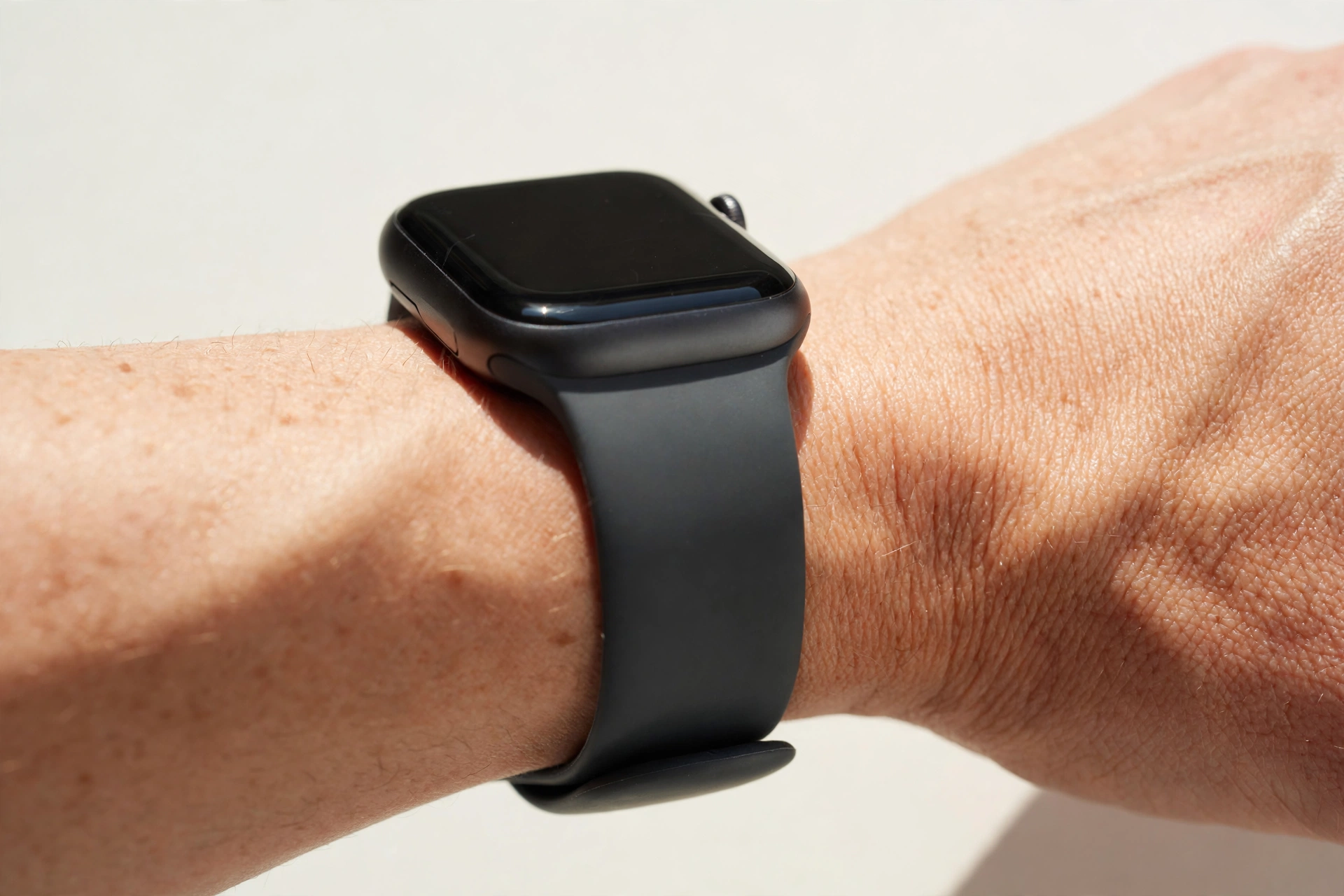
Fit is the single biggest cause of a smartwatch not counting steps correctly, and it is also the fastest fix. A watch that slides up and down your wrist confuses the accelerometer: the sensor loses the clean arm-swing pattern and either misses steps or invents them. Independent lab tests have found loose bands increase false steps by 5–12% during brisk walking.
- Wear the watch about one finger-width above your wrist bone, on the top of your wrist.
- It should be snug enough that the back of the watch stays flat against your skin and does not slide when you shake your wrist. You should be able to slide one fingertip under the band with a little effort.
- Tighten it one notch for workouts, then loosen it again afterwards. Tighter is not more accurate — once the sensor has steady contact, extra pressure only restricts blood flow and can make readings worse.
- If the band is stretched, worn, or the wrong size, replace it. A band that cannot hold the watch still cannot be fixed by any setting.
For the full fit check, including the 30-second fit test and how fit changes for sleep and workouts, read our guide on how tight a smartwatch should be.
Fix 2: Check Your Personal Data and Wrist Settings
Your watch estimates stride length from your height, weight, age, and which wrist and hand you use. Wrong data means wrong distance and a step count that drifts further the longer you walk.
- Height and weight: Open the companion app (Apple Health, Samsung Health, Garmin Connect, Fitbit app, or Fitbit / Google Fit) and confirm your height and weight are correct and in the right units. A height entered in the wrong unit is a classic cause of a large, consistent error.
- Wrist and dominant hand: Make sure the watch knows which wrist it is on and whether that hand is dominant. A mismatch between the setting and reality can reduce sensitivity by a few percent, and wearing the watch on the opposite wrist from the setting is a common cause of undercounting.
- Date of birth and gender: These feed the same stride estimate. Check them while you are in the settings — it takes ten seconds.
- Units: If distance looks wrong but steps look right, check whether the app is set to miles or kilometres. That is a display problem, not a counting problem.
Fix 3: Calibrate With a 20-Minute Outdoor Walk
Calibration is the most effective single fix for a smartwatch not counting steps correctly, because it teaches the watch your actual stride instead of the factory default. Most watches calibrate automatically during outdoor walks with GPS, but only if location access and motion calibration are switched on.
- Go outside to a flat route with a clear view of the sky — a park path or a quiet street, not a treadmill.
- Make sure location services are on for the watch and its companion app, and that motion calibration is enabled (see the brand steps below).
- Start an Outdoor Walk workout on the watch and walk at your natural pace for at least 20 minutes, swinging your arms normally. Do not push a stroller, carry bags, or keep your hands in your pockets.
- End the workout and let the watch sync. Repeat the walk once or twice over the next few days — accuracy usually stabilises within one or two calibration walks.
For Garmin, Fitbit, and Samsung watches, you can also set a custom stride length manually: walk a known distance (for example 100 metres) while counting your steps, divide the distance by the number of steps, and enter that stride length in the companion app. Recalibrate every few weeks, and again if you change shoes, walking speed, or start a new exercise routine.

Fix 4: Brand-Specific Settings for Apple, Samsung, Garmin, Fitbit, and Pixel
The setting that blocks step counting has a different name on every brand. Check your brand below.
Apple Watch
- On your iPhone, go to Settings > Privacy & Security > Motion & Fitness and make sure Fitness Tracking is on.
- In the Watch app, go to Privacy and turn on Motion Calibration & Distance. This is the switch that lets the watch learn your stride.
- In the Watch app, check My Watch > General > Watch Orientation and confirm the wrist and Digital Crown side match how you wear it.
- Make sure Wrist Detection is on (Watch app > Passcode). With it off, Apple says some Activity measurements are unavailable.
- If steps show on the watch but not on your iPhone, open Health > Browse > Activity > Steps, scroll down to Data Sources & Access, tap Edit, and drag Apple Watch above iPhone so the watch becomes the priority source.
Samsung Galaxy Watch
- In the Galaxy Wearable app, confirm the watch is the priority step source if you prefer wrist data over phone data.
- Check that Location is on and that Samsung Health has the motion and location permissions it asks for.
- Record a 15–20 minute Outdoor Walk on level ground with the strap snug, then compare the result with a manual count over a known distance.
- If Samsung Health and Google Fit disagree, pick one as your single source of truth — two apps counting the same walk will not agree.
Garmin
- In Garmin Connect, confirm your height, weight, and wrist setting, and set a custom stride length from a measured 100-metre walk if the default feels off.
- Enable GPS for outdoor walks so the watch can calibrate stride against real distance.
- Check that Activity Tracking is on (watch Settings > Activity Tracking) — it can be switched off by accident, and the watch will then record nothing at all.
- Sync the watch after each walk. Garmin watches store steps on the device and only send them to the app on sync, so a missing sync looks like missing steps.
Fitbit and Google Pixel Watch
- In the Fitbit app, check Profile > Settings > Personal and confirm height, weight, and stride length.
- On the watch, check that activity tracking is on and that the Fitbit app has location permission on your phone.
- Pixel Watch users: the same checks apply in the Fitbit app, since the Pixel Watch uses Fitbit for step tracking.
- If steps appear in the app but not on the watch face, add a steps complication or a step-count widget — the watch may be counting fine and simply not showing the number.
Quick reference: the setting that blocks steps on each brand
| Brand | The switch to check | Where to find it |
|---|---|---|
| Apple Watch | Fitness Tracking + Motion Calibration & Distance | iPhone Settings > Privacy & Security > Motion & Fitness; Watch app > Privacy |
| Samsung Galaxy Watch | Location + Samsung Health permissions | Galaxy Wearable app > Watch settings; Samsung Health permissions |
| Garmin | Activity Tracking on; GPS for outdoor walks | Watch Settings > Activity Tracking; Garmin Connect personal data |
| Fitbit / Pixel Watch | Activity tracking on; correct stride length | Fitbit app > Profile > Settings > Personal |
| Amazfit / budget Wear OS | Pedometer / activity tracking on; correct height | Zepp app or Wear OS companion app > Profile |
Fix 5: Stop Your Phone and Watch Arguing Over the Count
If your phone and your watch both count the same walk, your health app has to choose one — it does not add them together, or you would get double steps. When the phone wins, the total can look too low (the phone sat on a desk while you walked) or too high (the phone counted a bumpy car ride the watch ignored).
- iPhone + Apple Watch: In Health, go to Browse > Activity > Steps > Data Sources & Access, tap Edit, and drag Apple Watch above iPhone. A third-party app you connected recently usually lands at the top of the list, so check the order again after installing any new fitness app.
- Android + Wear OS / Samsung: In Health Connect, go to Manage data > Data sources and priority, and put your watch above your phone.
- One app only: Do not run two step counters (for example Samsung Health and Google Fit) at the same time and compare them — they use different algorithms and different sources, so they will disagree. Pick one and judge accuracy against the 100-step test, not against the other app.
Fix 6: Update, Restart, and Reset — In That Order
If fit, data, and calibration are all correct and the count is still wrong, the cause is usually software.
- Update the watch and the companion app. Manufacturers regularly refine motion algorithms and fix step-counting bugs in firmware updates. On Apple Watch: Settings > General > Software Update. On Samsung: Galaxy Wearable > Watch settings > About watch > Software update. On Garmin and Fitbit: check for updates in Garmin Connect or the Fitbit app.
- Restart both devices. Turn the watch off and on again, and restart your phone. Step data sometimes takes a few minutes to sync after a workout, so give it time after the restart before judging the result.
- Reset sync data. On Apple Watch, open the Watch app on your iPhone, tap General > Reset > Reset Sync Data. This forces a fresh sync without deleting your history.
- Reset fitness calibration data — last resort only. On Apple Watch, this is Watch app > Privacy > Reset Fitness Calibration Data. It wipes your calibration history, so the watch has to relearn your stride from scratch and may be less accurate for a few days. Only use it if nothing else worked.
Also check Low Power Mode: on many watches it reduces sensor sampling to save battery, which can miss steps at a fast walking pace. If your steps are wrong only on days when battery saver is on, that is the cause — and our guide on why a smartwatch battery drains so fast explains the trade-off in more detail.
Activities That Fool Every Step Counter
Some activities will always be miscounted, on every brand, because the watch reads your arm and not your feet. Knowing this saves you from chasing a fix that does not exist.
| Activity | What happens | What to do instead |
|---|---|---|
| Pushing a stroller or shopping trolley | Both hands still, so steps are missed — undercounts of up to 25% are common | Start an Outdoor Walk workout; Apple and Garmin count the workout even without arm swing |
| Treadmill walking | No GPS movement, arm swing is smaller | Use the Treadmill / Indoor Walk workout and calibrate it; expect a larger error than outdoors |
| Carrying bags or a dog on a tight leash | One arm still, so half the swings are missing | Switch the watch to the free arm, or start a workout |
| Cycling | Legs move, arms do not | Steps are not the right metric — track the ride as a cycling workout instead |
| Typing, gesturing, or a bumpy car ride | Hand movement looks like steps | Phantom steps; a snug fit and correct wrist setting reduce them, but some false steps are normal |
| Walking with hands in pockets | No arm swing at all | Take your hands out for the calibration walk; day to day, accept a small undercount in cold weather |
When It Is a Hardware Fault
Most step-counting problems are settings, fit, or calibration. Suspect hardware only if all of the following are true: the watch counts zero steps in the 100-step test even after Fixes 1–6, other sensors (heart rate, GPS) are also failing, or the watch has been dropped, soaked beyond its water rating, or exposed to a hard impact. In that case, back up the watch, check the warranty, and contact the manufacturer — a faulty accelerometer cannot be fixed by any setting. If the watch is out of warranty, a factory reset is worth one try before replacing it, since it rules out a corrupt software install.
The Bottom Line
A smartwatch not counting steps correctly is usually a fixable problem, not a broken watch. Run the 100-step test to measure the error, fix the fit first, check your height, weight, and wrist settings, and do a 20-minute outdoor calibration walk with GPS on. Then check the brand-specific setting that blocks tracking, make the watch the priority step source over your phone, and update the firmware. If the watch still counts zero after all six fixes, or other sensors are failing too, it is time to check the warranty. For most people, the fix is in the first three steps — and a snug fit and one calibration walk are all it takes to get back to a count you can trust.
FAQs: Smartwatch Not Counting Steps Correctly
Why is my smartwatch suddenly not counting steps?
The most common cause of a sudden change is a software update, a setting that got switched off, or a band that has stretched loose. Check Fitness Tracking / Motion Calibration (Apple), Activity Tracking (Garmin), or the equivalent switch on your brand, restart the watch, and re-check the fit. If the problem started right after an update, give it two or three days — the watch often recalibrates after a major update — and do one 20-minute outdoor calibration walk.
Why does my smartwatch count steps when I am not walking?
Your watch reads arm movement, not feet, so typing, gesturing, driving on a bumpy road, or shaking your wrist can register as phantom steps. A snug fit and the correct wrist and dominant-hand setting reduce this. A few false steps a day are normal on every brand; hundreds while sitting still point to a loose band or a too-sensitive setting.
Why do my iPhone and Apple Watch show different step counts?
Both devices count steps, and Apple Health picks one source instead of adding them together. If your iPhone is above your watch in Health > Browse > Activity > Steps > Data Sources & Access, Health uses the phone’s count — which misses every walk where the phone stayed on a desk. Drag Apple Watch above iPhone and the numbers will match the watch.
How accurate should my smartwatch step count be?
A well-fitted, calibrated smartwatch is typically within 5–10% of a manual count at a normal walking pace — a 2025 review in npj Digital Medicine found a mean error of about 8% across Apple Watch models. Treat the count as a trend over days and weeks, not a laboratory measurement. If your watch is off by more than 10% in the 100-step test, work through the fixes above.
Does Low Power Mode affect step counting?
Yes. Low Power Mode and battery saver modes reduce how often the motion sensor samples, which can miss steps — especially at a fast walking pace or during short walks. If your step count is only wrong on days when battery saver is on, turn it off for the day and compare. Keeping the watch charged and the mode off during activity is the simplest fix.
Should I reset my smartwatch if it will not count steps?
Only as a last resort. First fix the fit, check your personal data and wrist settings, do a calibration walk, and update the firmware. Resetting fitness calibration data wipes your stride history and makes accuracy worse for a few days while the watch relearns. A full factory reset is worth trying only if the watch counts zero steps after every other fix, or other sensors are failing too.
Disclaimer: This article is for general information only and is not medical advice. Step counts from consumer smartwatches are estimates, not medical measurements — use trends over time rather than a single day’s number to judge your activity, and talk to a doctor before starting a new exercise programme or if you have a health condition that affects walking. Always follow your watch manufacturer’s instructions, which take precedence over general advice.