
You can enrol devices in Apple Business in three ways: Automated Device Enrolment when you buy from Apple or an authorised reseller, Apple Configurator for iPhones and iPads you already own, or Apple Configurator for Macs. For most small businesses, Automated Device Enrolment is the fastest option — the device configures itself the first time an employee switches it on, with no hands-on setup from you. This guide walks through all three methods, what each one costs, and the mistakes that leave devices stuck outside your account.
Apple Business is Apple’s free portal for small businesses (business.apple.com). It replaced Apple Business Manager in April 2026 — the old name still appears in most guides and search results, but the portal, the enrolment steps, and the MDM connection work the same way under the new name. If you have read about “ABM” anywhere, that is what this guide means by Apple Business.
What “Enrolling” a Device Actually Means
Enrolling a device does two separate things, and confusing them is the most common reason small businesses get stuck.
First, the device is registered in Apple Business. This is Apple’s record that your business owns the device, identified by its serial number. Registration alone does not manage the device — it just proves ownership and tells the device which management server to contact.
Second, the device enrols in your MDM (mobile device management) solution. The MDM is what actually pushes Wi-Fi passwords, installs apps, enforces a passcode policy, and lets you lock or wipe a lost device remotely. Apple Business now includes basic built-in device management for free, or you can connect a dedicated MDM such as Mosyle or Jamf.
Think of it this way: Apple Business is the ledger that proves you own the device. Your MDM is the remote control. You need both, and this guide covers both.
If you have not chosen an MDM yet, start with our plain-English explainer of what mobile device management is and how it works, then compare the main small-business options in our Jamf vs Intune vs Mosyle guide and our roundup of the best MDM solutions for 2026.
Before You Start: What You Need
Enrolment fails most often because one of these was missing. Get them sorted before you touch a device.
- An Apple Business account. Sign up free at business.apple.com. You will need your legal business name and address, a D-U-N-S number (Dun & Bradstreet’s business identifier), and an email address that is not already an Apple ID. Apple verifies your business, which usually takes a few days — apply before you need devices enrolled, not the day they arrive.
- An admin Apple ID. Use a business-owned Apple ID for the admin role, not a personal one. If the person who set it up leaves, a personal Apple ID leaves with them.
- Your Organisation ID (also called your Apple Customer Number). You will find it in Apple Business under Settings. Give this number to every reseller you buy from — it is how new purchases land in your account automatically.
- An MDM decision. Apple Business’s built-in management covers the basics for free. If you want app deployment, patching, and compliance reporting, pick a dedicated MDM first — Mosyle Business is free for up to 30 Apple devices, and Jamf Now is free for your first 3 devices. Your MDM gives you a server token to upload in Apple Business (covered in step 4 below).
- A Mac with Apple Configurator, if you are adding devices you already own. Apple Configurator is a free app from the Mac App Store, and it only runs on a Mac.
Which Enrolment Method Fits Your Business?
There are three ways to get a device into Apple Business. Pick by how the device was bought, not by which method looks easiest.
| Method | Best for | Devices | Effort | Supervision |
|---|---|---|---|---|
| Automated Device Enrolment (ADE) | New devices bought from Apple or an authorised reseller | iPhone, iPad, Mac, Apple TV | Almost none — automatic at first switch-on | Yes, automatic |
| Apple Configurator — iPhone/iPad | Devices you already own, or bought second-hand | iPhone, iPad | Medium — one device at a time over USB | Yes, after a 30-day provisional period |
| Apple Configurator — Mac | Macs you already own | Mac with Apple Silicon or T2 chip, macOS 12 or later | Medium — needs a second Mac | Yes, after a 30-day provisional period |
| Manual / user enrolment (BYOD) | An employee’s personal device | iPhone, iPad, Mac | Low — the employee taps through it | No — lighter control, user can remove it |
For a small business buying new devices, Automated Device Enrolment wins every time. The other methods exist for the fleet you already have.
Method 1: Automated Device Enrolment (New Purchases)
This is the zero-touch method. The device is registered with Apple before it ships, and it enrols itself the first time it is switched on.
Step 1 — Link your reseller. In Apple Business, go to Settings, then Device Management Settings, then add your reseller’s Reseller ID or your carrier’s Carrier ID. Link it to your organisation and to the right Location (a Location is usually an office, department, or business unit). Do this once — every future order from that reseller is then covered.
Step 2 — Give the reseller your Organisation ID when you order. Tell Apple or your authorised reseller that the devices are for your Apple Business account, and give them your Organisation ID before you pay. If you forget this step, the devices will not appear in your portal and you will be adding them by hand with Apple Configurator instead.
Step 3 — Check the devices appear. New devices usually show up in Apple Business under Devices within 24 to 48 hours of the order shipping. Check the serial numbers match your order before you hand anything out.
Step 4 — Assign the devices to your MDM server. In Apple Business, go to Devices, then Device Assignments, select the devices, and assign them to your MDM server. This is the step that tells each device where to enrol when it first switches on. If you use Apple Business’s built-in management, the devices are managed there automatically.
Step 5 — Hand the device to the employee. That is genuinely it. When the employee switches the device on and connects to Wi-Fi, it contacts Apple, sees it belongs to your business, skips the consumer setup screens you chose to hide, and enrols in your MDM. Wi-Fi, email, and apps arrive without you touching the device.
Method 2: Add iPhones and iPads with Apple Configurator
Use this for iPhones and iPads you already own, or that were bought without your Organisation ID attached.
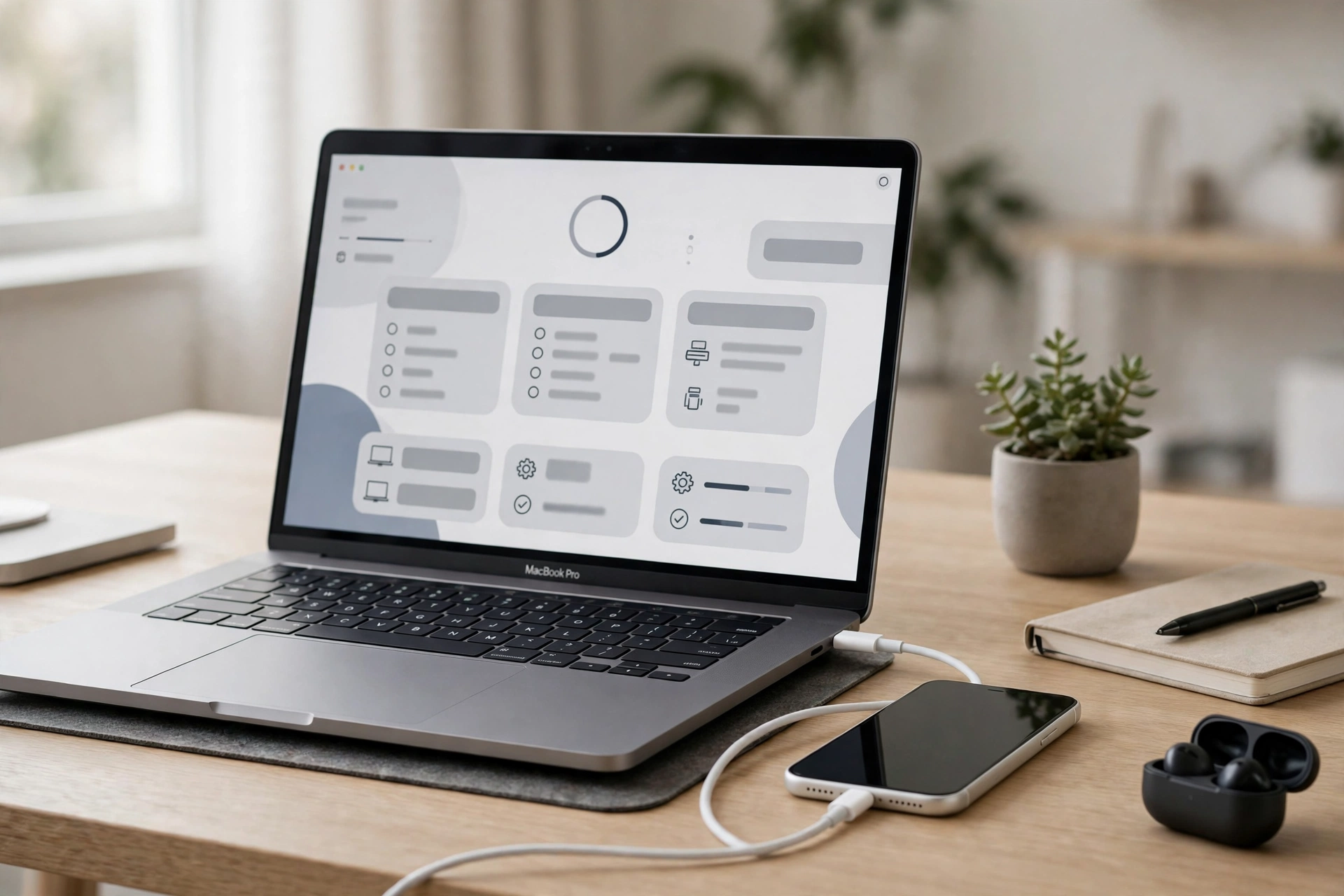
Step 1 — Back up and erase the device. Apple Configurator enrolment requires a factory reset. Back up anything on the device first, then erase it (Settings, then General, then Transfer or Reset, then Erase All Content and Settings). There is no way around this — supervision cannot be added to a device that is already set up.
Step 2 — Install Apple Configurator on a Mac. Download it free from the Mac App Store. The iPhone or iPad must run iOS 11 or later.
Step 3 — Connect the device and choose Prepare. Plug the iPhone or iPad into the Mac with a USB cable, open Apple Configurator, select the device, then click Prepare and choose Automated Device Enrolment.
Step 4 — Sign in with your Apple Business credentials. Choose your organisation, then choose the MDM server the device should be assigned to. Apple Configurator adds the device to Apple Business.
Step 5 — Let it activate and complete enrolment. The device restarts, activates, and enrols in your MDM. In Apple Business, the device will first sit on a server called “Devices Added by Apple Configurator”. Reassign it to your real MDM server under Device Assignments — select the device by serial number, choose Assign to Server, and pick your MDM.
The 30-day provisional period. Devices added through Apple Configurator are supervised on a provisional basis for 30 days. During that window, the device user can remove the management profile from Settings. After 30 days the supervision becomes permanent and only you can release the device. Two consequences: do not hand a Configurator-added device to an employee on day one and assume it is locked down, and do not panic if a device disappears from management in its first month — check whether it was released during the provisional period.
Method 3: Add Macs with Apple Configurator
Macs follow the same idea, but you need a second Mac to do it.
Step 1 — Check the Mac qualifies. The Mac you want to add must have Apple Silicon or a T2 Security Chip, and must run macOS 12 or later. Older Macs without a T2 chip cannot be added to Apple Business at all.
Step 2 — Prepare a second Mac. You need another Mac with admin rights and Apple Configurator installed. Connect the two Macs — a USB-C cable works, or a Thunderbolt cable for faster transfer.
Step 3 — Add the Mac to Apple Business. On the admin Mac, open Apple Configurator and choose Add Mac to Apple Business Manager (the menu still uses the old name in some versions — it is the same thing). Follow the prompts and sign in with your Apple Business credentials.
Step 4 — Assign the Mac to your MDM server. As with iPhones and iPads, assign the Mac to your MDM server in Apple Business under Device Assignments, then switch the Mac on. It enrols automatically at first setup.
Step 4 for Everyone: Connect Apple Business to Your MDM
Whichever enrolment method you used, your MDM needs a server token from Apple Business before devices can enrol into it.
Step 1 — Download the token. In Apple Business, go to Settings, then MDM Servers, select your server, and click Download Token. You get a .p7m file.
Step 2 — Upload it to your MDM. In your MDM console (Mosyle, Jamf, Intune, or whichever you chose), find the Apple Business / DEP integration settings and upload the token file. This links the two systems.
Step 3 — Set your default enrolment profile. In your MDM, create or check the default enrolment profile. This is what decides the first-boot experience: which setup screens are skipped, whether the device is supervised, which apps install automatically, and which restrictions apply.
Step 4 — Put a calendar reminder on the token. Server tokens expire after one year. If yours lapses, new devices stop enrolling and existing devices can lose their connection to the MDM. Renew it in Apple Business and re-upload it before the expiry date — a yearly reminder beats a Monday morning of un-enrolled devices.
What Enrolling Devices in Apple Business Costs
Apple Business itself is free, and since April 2026 it includes basic built-in device management at no cost. The real cost decision is whether to add a dedicated MDM on top.
| Option | Price (November 2026) | Best for |
|---|---|---|
| Apple Business built-in management | Free | A small all-Apple office with basic needs |
| Mosyle Business Free | Free for up to 30 Apple devices | Apple-only small businesses on a budget |
| Mosyle Business Premium | $1 per device per month | Apple-only fleets that outgrow the free tier |
| Jamf Now | Free for 3 devices, then from $4 per device per month | Teams under 25 employees trying Jamf |
| Jamf for Mac / Jamf for Mobile | $12.50 per Mac / $5.75 per mobile device per month | Larger Apple fleets that need depth |
| Microsoft Intune Plan 1 | $8 per user per month | Businesses already on Microsoft 365 with mixed devices |
Prices are vendor-published and change — check the vendor’s pricing page before you commit. For most small businesses, the honest starting point is Apple Business’s free built-in management or Mosyle’s free tier, and only pay once you need something they cannot do. Our Jamf vs Intune vs Mosyle comparison breaks down which of the three fits a small business, and our best MDM solutions roundup covers the wider field.
Common Problems and How to Fix Them
| Problem | Likely cause | Fix |
|---|---|---|
| New devices do not appear in Apple Business | Reseller ID not linked, or Organisation ID not given at purchase | Link the reseller ID in Settings, then ask the reseller to assign the order to your account; allow 24–48 hours after shipping |
| Device switches on but does not enrol | Device not assigned to an MDM server | In Apple Business, go to Device Assignments and assign the device to your MDM server before first setup |
| Device enrols, then drops out of management | Added via Apple Configurator and released inside the 30-day provisional period | Re-add it with Apple Configurator and wait out the 30 days; explain to the user that removal is expected to be blocked |
| Apple Configurator cannot add the Mac | Mac has no T2 chip or Apple Silicon, or runs macOS 11 or older | That Mac cannot join Apple Business — manage it with manual enrolment in your MDM instead |
| Enrolment worked last month, now nothing enrols | Server token expired (they last one year) | Download a fresh token in Apple Business and upload it to your MDM |
| Business verification is taking weeks | D-U-N-S number mismatch with your legal business name | Check the name and address on your D-U-N-S record match your application exactly, then contact Apple Business support |
| Employee’s personal device will not enrol | Personal devices cannot be supervised | Use user enrolment (BYOD) instead — lighter control, but the employee keeps their own device and can remove management |
Your First-Device Checklist
Run through this once with a single device before you roll out to the whole team.
- Apple Business account approved, with your Organisation ID noted down.
- Reseller ID linked in Settings, or Apple Configurator installed on a Mac.
- MDM chosen, server token downloaded and uploaded, default enrolment profile set.
- One test device assigned to the MDM server in Apple Business.
- Switch the test device on, confirm it skips the setup screens you hid, and check it appears in your MDM console.
- Confirm Wi-Fi, email, and your core apps arrived without manual setup.
- Put a yearly reminder in your calendar for the server token renewal.
If the test device works, repeat the same steps for the rest of the fleet — the process does not change, only the number of serial numbers.
Frequently Asked Questions
Is Apple Business free?
Yes. Apple Business is free, and since April 2026 it includes basic built-in device management at no cost. You only pay if you add a third-party MDM such as Jamf or Mosyle, and both offer free tiers for small fleets.
Is Apple Business the same as Apple Business Manager?
Yes, effectively. Apple Business Manager was folded into Apple Business in April 2026, along with Apple Business Essentials and Apple Business Connect. The portal is still at business.apple.com, enrolment works the same way, and most guides still say “Apple Business Manager” out of habit.
Do I need a D-U-N-S number to enrol devices in Apple Business?
Yes. Apple requires a D-U-N-S number to verify your business when you sign up for Apple Business. It is free to get one from Dun & Bradstreet, but allow a few days for it to be issued and for Apple to verify your business.
Can I enrol devices I bought from a shop, not from Apple?
Yes, with limits. If the shop is an Apple authorised reseller, give them your Organisation ID and they can assign the devices to your account. Otherwise, use Apple Configurator on a Mac to add iPhones, iPads, and qualifying Macs yourself — but you will need to factory-reset them first, and they carry a 30-day provisional period.
Can I enrol an employee’s personal iPhone in Apple Business?
Not fully. Personal devices cannot be supervised or forced into Automated Device Enrolment. Instead, use user enrolment (BYOD) through your MDM: the employee signs in with a Managed Apple ID, work apps and settings are kept separate from personal data, and the employee can remove management at any time.
What happens if I remove a device from Apple Business?
Removing a device releases it from your organisation. It will no longer enrol in your MDM automatically, and on its next reset it behaves like a normal consumer device. Do not release a device you still own and manage — and remember that devices added via Apple Configurator can be released by the user during the first 30 days.
Disclaimer
This guide is general information for small businesses, not IT or legal advice. Apple changes its portal, requirements, and pricing — check Apple’s official support pages and your MDM vendor’s documentation before enrolling production devices, and test with one device first.